The blinking cursor on a blank page used to be a familiar, if sometimes daunting, sight. Now, an AI assistant hovers nearby, ready to leap into action. Microsoft's Copilot, integrated into Word, Excel, and PowerPoint, has received a significant upgrade, moving beyond mere suggestions to actively creating and editing content. While the promise of AI streamlining our work is compelling, I decided to dive in and see if these new, more agentic tools were truly a step forward or just another digital distraction. After spending time with Copilot in its latest iteration, I'm left wondering if I'll be reaching for it again.
Word: Drafting and Editing with Copilot
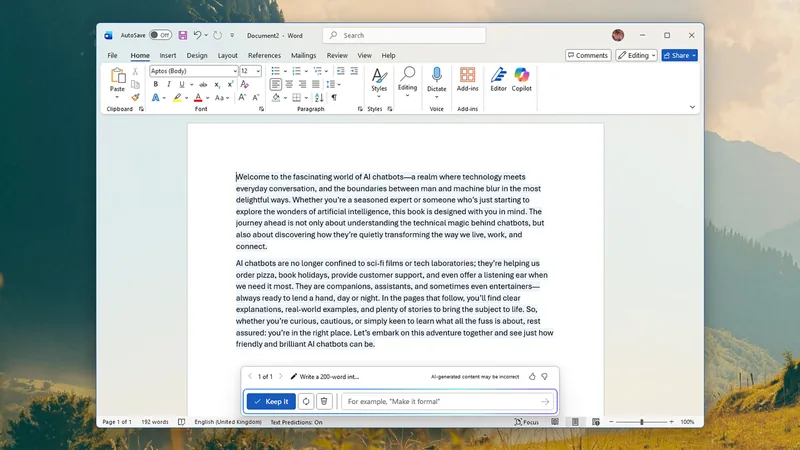
Imagine opening a fresh Word document and being prompted to describe your desired content. That's the reality with Copilot. I asked it to draft a 200-word introduction for a book on AI chatbots, aiming for a friendly, accessible tone. Within seconds, it produced a text that felt… well, like it was assembled from millions of pre-existing sentences. It was competent, but lacked a distinct voice. The follow-up prompt allowed for refinement, and I requested a more formal, verbose style. Copilot obliged, digging into its vast lexicon for more sophisticated language.
The real power, however, lies in the side panel. Here, you can ask Copilot to transform existing text. Need to pivot a report to focus on client benefits? Copilot can attempt it, presenting changes for your review and approval. It's a powerful concept, especially for tasks that feel tedious. For instance, I asked Copilot to rewrite a technical explanation of cloud computing for a non-technical audience, and it managed to simplify complex jargon effectively, though it did miss a key analogy that would have made it truly shine.
Yet, I find myself hesitating. Would I hand over my creative writing or critical analysis to an AI? Not yet. My own brain, with all its quirks and imperfections, feels more valuable. But if your goal is to generate content quickly, or to ensure flawless grammar and spelling (something even the most seasoned writer can miss), Copilot is undeniably capable. It's like having a tireless, albeit slightly uninspired, junior editor at your beck and call.
Excel: Charts and Data Manipulation
My spreadsheet skills are, let's say, foundational. So, the idea of Copilot building and editing charts was particularly appealing. Unlike Word, there isn't a prompt bar at the top of a blank Excel sheet. Instead, you access Copilot via the ribbon. My test involved creating a simple table and chart of 10 kids' running times from a school sports day. Copilot executed the basic request with reasonable accuracy.
For more advanced users, the potential is significant. Imagine asking Copilot to combine sales data from three different quarterly reports into a single, comprehensive dashboard. Or requesting it to identify the top 5 performing products based on revenue from a massive dataset. While my initial chart creation was a bit rough around the edges and required some manual tidying, the follow-up edits were precise. If you know exactly what you want, Copilot can deliver it. For example, I asked it to calculate the average running time for each child and highlight anyone under a certain threshold, which it did correctly.
I'm still wary of entrusting critical financial data to AI, but for everyday spreadsheet tasks - from calculating totals to formatting tables - Copilot offers a compelling alternative to manual labor. It can save significant time, especially when wrestling with complex formulas or data integration. The ability to simply ask for a specific chart type, like a Pareto chart of customer complaints, without knowing the exact Excel functions, is a powerful time-saver.
PowerPoint: Slideshow Creation
Creating a compelling PowerPoint presentation from scratch can be a significant undertaking. I put Copilot to the test by asking it to generate a slideshow promoting Lifehacker. The goal was to see how well it could synthesize information and structure an entire presentation. After answering a few clarifying questions about the desired length and tone, Copilot sprang into action.
The result was, predictably, somewhat generic. It produced a series of slides that were functionally sound but lacked the creative spark or unique branding that makes a presentation truly memorable. However, the speed and efficiency are undeniable. Producing an entire deck in seconds is impressive, even if a human might spend a bit more time refining the narrative flow and visual appeal. I also asked Copilot to add a slide summarizing key takeaways from a lengthy report, and it did so concisely, pulling the most salient points.
Editing via prompts is where Copilot shines in PowerPoint. Changing slide layouts, adjusting color schemes, or even adding new content based on specific instructions is far quicker than navigating through menus. Want to change the background image to something more professional? Just ask. While I might still prefer to craft my presentations myself for maximum impact, I can see the immense value for users who need to get a basic presentation done quickly or want to automate repetitive design tweaks. For me, the learning curve and the slight lack of personality mean I'll likely stick to my old ways for now, but I won't dismiss its utility for specific, time-sensitive tasks.