It's a common scene these days: the shiny new MacBook Air or Pro sits on your desk, a stark contrast to the familiar Windows machine it's replacing. Apple CEO Tim Cook noted a record-breaking launch week for new Mac customers, suggesting many of you are indeed making the switch. If you're one of them, diving into macOS for the first time can feel like learning a new language, especially when your muscle memory is deeply ingrained with Windows. But don't worry, this transition is smoother than you might think. Here are six key things to know when moving from Windows to macOS to help you get acquainted quickly.
The Menu Bar: A New Home for App Controls
Perhaps the most immediate visual difference you'll notice is macOS's persistent menu bar at the very top of your screen. Unlike Windows, where application menus are typically embedded within each program's window, macOS consolidates them into this single bar. Whether you're in Chrome, Photoshop, or Spotify, the menus for that active application will appear here. It's a bit like having a universal control panel for whatever you're currently working on. On the top-left, you'll always find the Apple logo, which leads to system-wide settings and information, and to its right, the name of the active application. This centralisation can take a little getting used to, but it quickly becomes intuitive (Lifehacker, 2023).
No Start Menu, But Powerful Alternatives
Windows users are accustomed to the Start button as a central hub for launching apps and accessing system settings. macOS doesn't have a direct equivalent. Instead, these functions are distributed. The Apple menu, found in the top-left corner (that familiar Apple logo), is your go-to for core system functions. Here you'll find 'About This Mac' for system information, Sleep, Restart, and Shut Down options, and importantly, 'Force Quit' for managing unresponsive applications. It also provides access to the App Store for downloads and updates. For a sense of recently used apps and files, the 'Recent Items' submenu under the Apple menu serves a similar purpose to parts of the Windows Start menu (TechRadar, 2024).
Finding and Launching Apps: Spotlight and the Dock
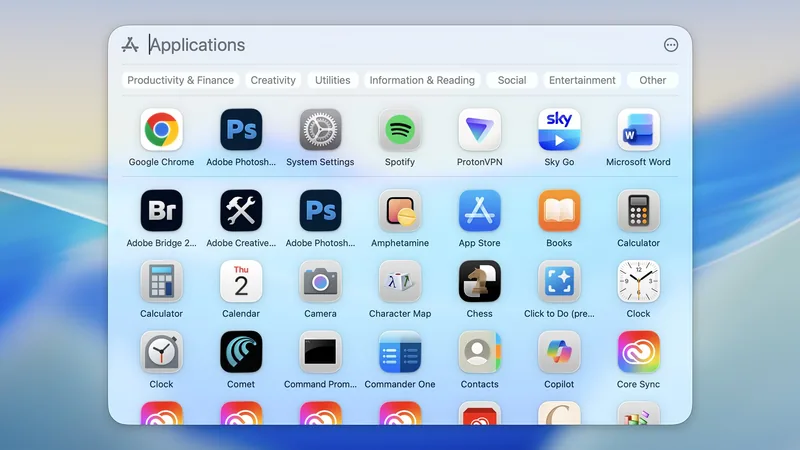
Launching applications on macOS offers a few pathways, but two stand out: Spotlight and the Dock. Spotlight, accessed by Cmd + Space or the magnifying glass icon in the menu bar, is incredibly powerful. Type a few letters of an app's name, and it'll appear, ready to launch. It's akin to Windows' search but often faster and more integrated. The Dock, situated at the bottom of the screen, functions much like the Windows Taskbar. You can pin your most-used apps here for quick access, switch between open applications, and even see which apps are running. For a comprehensive list of all installed applications, you can use Spotlight and click the App Store icon, or navigate to the 'Applications' folder via the Finder app.
Meet Finder: Your New File Explorer
The equivalent of Windows' File Explorer on macOS is called Finder. It's your central hub for managing all local files and folders. Launch it from the Dock or Spotlight. Like File Explorer, Finder features a navigation pane on the left, giving you quick access to key locations like Desktop, Documents, Downloads, and Applications. The top menu bar controls application-wide functions, while window-specific options for layout and view appear at the top of the Finder window itself. Drag-and-drop functionality for moving files works as expected. A standout feature is Quick Look: select a file and press the Spacebar to preview it instantly without needing to open the associated application - immensely useful for quickly checking PDFs or images (PCMag, 2023).
System Settings and App Preferences
Customizing your Mac experience is primarily handled through System Settings, accessible via the Apple menu. This is where you'll manage software updates, network connections, display preferences, and battery settings (on MacBooks). You can tweak your desktop wallpaper, control notification behaviors, and customize the menu bar's appearance and shortcuts. If you're looking to adjust settings for a specific application, the convention on macOS is to click the application's name in the menu bar (e.g., 'Chrome' or 'Spotify') and then select 'Settings' from the dropdown menu that appears. This is a subtle but important difference from Windows, where app settings are often found within the app itself or through a dedicated settings window.
Keyboard Shortcuts and Ecosystem Magic
Retraining your fingers for macOS keyboard shortcuts is one of the steeper learning curves, but it's worth it. The most significant change is replacing the Ctrl key with the Cmd key for common actions like copy (Cmd+C) and paste (Cmd+V). Window management also shifts; Alt+Tab in Windows becomes Cmd+Tab on Mac for cycling through open applications. While these differences might feel jarring initially, they become second nature with practice. Beyond shortcuts, the true magic of macOS shines in its integration with other Apple devices. If you own an iPhone or iPad, features like Handoff (start a task on one device and finish on another), Universal Clipboard (copy text or images across devices seamlessly), and AirDrop (easy file sharing) create a wonderfully fluid workflow. For instance, you could copy a long URL on your iPhone and immediately paste it into a document on your Mac using Universal Clipboard. This seamless ecosystem integration is one of the most compelling reasons many users switch (Apple Support, 2024).