You're settling in for a focused work session, or maybe just unwinding after a long day. You hit play on your favorite playlist, ready to immerse yourself in the music. Then, it happens: a video starts playing, hijacking your attention and disrupting the calm you were aiming for. If this sounds all too familiar, you'll be relieved to hear that Spotify is rolling out a feature that finally lets you reclaim your audio sanctuary.
For those of us who prefer our music streaming apps to stay strictly that—streaming music—this is a welcome update. It goes beyond just disabling those brief looping visuals that play with songs. The new controls allow you to turn off music videos and even vertical videos contributed by artists, effectively returning Spotify to its audio-only roots for your listening pleasure.
Reclaim Your Audio Space
The best part? You can now disable videos whether you're a free user or on a premium plan. It's a straightforward process designed to give you more control over your app experience.
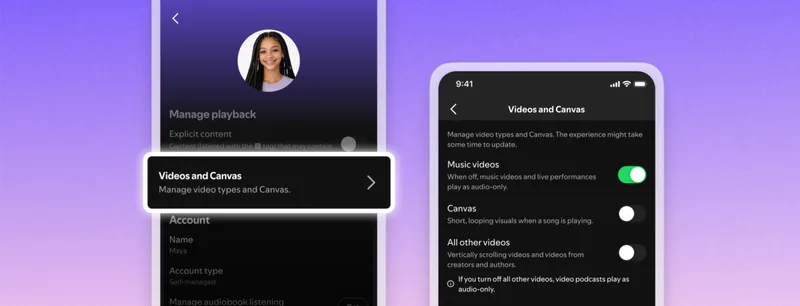
On your mobile device, open the Spotify app. Tap your profile icon in the top-left corner, then navigate to Settings and privacy, followed by Content and display. Here, you'll find the new controls under the “Videos and Canvas” section. To achieve a completely video-free experience, simply toggle off Music videos, Canvas, and All other videos.
For desktop users, the path is similar. Click your profile icon, go to Settings, and then select Display. While the toggle for 'Canvas' (the looping visuals during playback) has been available for a while, the options to disable music videos and other vertical content are the new additions. If you don't see these options immediately, don't worry – they're rolling out gradually over the coming weeks.
Managing for Your Plan or Household
If you manage a Spotify Family plan, good news: you can now disable videos for other members too. From the mobile app, tap your profile icon, select Your Premium, and then Manage. Choose the profile you wish to adjust, navigate to Videos and Canvas, and turn off the same three toggles. Spotify confirms that these settings sync across all devices logged into your account, saving you the hassle of adjusting them individually.
This feature is a significant step for users who find visual distractions detract from their listening enjoyment. Imagine trying to focus on a complex task or simply wanting a moment of pure auditory relaxation; unwanted videos can be a major interruption. Now, you can now disable these elements and tailor Spotify to your precise needs.
It's worth noting that this update doesn't extend to video ads or any looping visuals that might accompany audio ads. While that limitation might be a minor annoyance for some, the ability to eliminate most video content is a substantial win. For many, the primary goal is the music itself, and with this new option, you can now disable the visual clutter and truly immerse yourself in sound. It’s a move that puts the focus back where it belongs – on the audio experience.