Imagine this: You've just unboxed your shiny new Samsung Galaxy, eager to explore its capabilities. You tap through the familiar Android interface, but something feels… different. Deeper. More intuitive. That's the magic of One UI, Samsung's custom software layer that transforms a standard Android phone into a powerhouse of personalized productivity. While other Android users are stuck with a one-size-fits-all experience, your Galaxy handset offers a suite of unique features designed to streamline your digital life. Ready to unlock its true potential? Let's dive into seven Samsung Galaxy settings that set your phone apart.
Unlocking Deeper Customization
When you pick up a Samsung Galaxy, you're not just getting Android; you're getting Samsung's vision for it. One UI is packed with thoughtful tweaks and powerful tools that you simply won't find on a Google Pixel or a Nothing Phone. These aren't just cosmetic changes; they're functional enhancements that can genuinely improve how you interact with your device daily. Think of it as getting a premium toolkit built specifically for your phone.
For instance, while many phones offer basic display adjustments, Samsung lets you fine-tune your screen's color balance with remarkable precision. Navigate to Settings > Display > Screen mode. Here, you can switch between the punchy Vivid and the more color-accurate Natural modes. But the real magic lies in the Advanced settings. You'll find sliders for individual red, green, and blue channels, allowing you to achieve the perfect calibration for your eyes. A separate slider controls overall screen vividness. Watch the preview images at the top of the screen as you adjust - it's a surprisingly satisfying way to personalize your viewing experience.
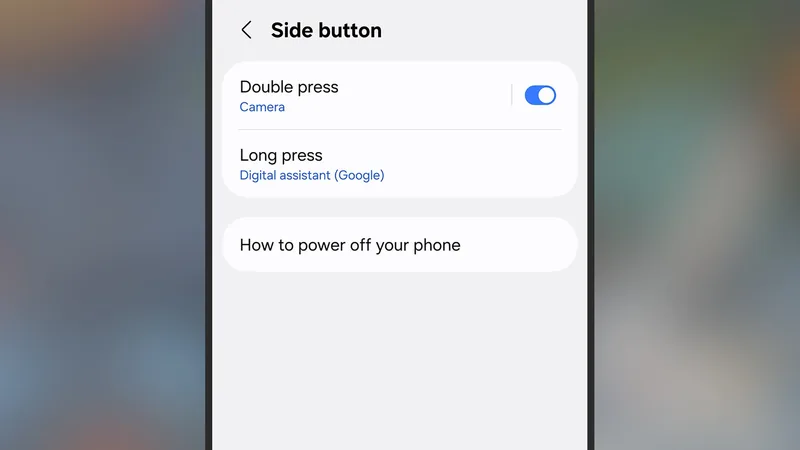
Beyond the display, Samsung gives you control over the physical buttons too. The side button, often just a power button, can be remapped for quicker access to your most-used functions. Head to Settings > Advanced features > Side button. You can customize what happens with a Double press or a Long press. Need to launch the flashlight in a hurry? Or perhaps open your favorite note-taking app? The double press can be assigned to almost any application. The long press, by default, usually brings up Google Assistant or powers off the device. However, you can change the long press to summon a different assistant or even set it to power off your phone directly, bypassing the need to press two buttons simultaneously - a small but significant convenience.
One of the most visually striking and useful features is the Edge panel. Accessible by swiping from a designated edge of your screen, it's a customizable sidebar that puts your favorite apps, contacts, and tools within immediate reach. Find it under Settings > Display > Edge panels. You can choose what kind of panel you want - Apps, People, Tasks, Weather, Tools, Clipboard, or Reminders - and even customize its appearance and position. Imagine quickly accessing your most-used messaging app or a crucial contact without navigating through your entire app drawer. It's like having a dynamic dock or taskbar built right into your phone's edge.
For those who juggle multiple tasks, the Multi window mode on One UI is a game-changer, especially on larger Galaxy screens. It transforms your phone into a mini desktop, allowing you to run two apps side-by-side. Access it via Settings > Advanced features > Multi window. Once enabled, swipe up from the bottom to reveal recent apps, tap an app icon, and select 'Open in split screen view'. You then choose a second app to share the screen. This makes comparing information, replying to messages while watching videos, or referencing documents incredibly efficient.
Here's another of the seven Samsung Galaxy settings that often goes unnoticed: Secure Folder. This is a private, encrypted space on your phone where you can store sensitive apps, files, photos, and notes. It's protected by Samsung Knox security and requires a separate PIN, pattern, or fingerprint to access. It's perfect for keeping work documents separate from personal files, or for stashing photos you don't want easily discoverable. Think of it as a digital safe box within your phone.
Optimizing Performance and Convenience
Beyond customization, Samsung's One UI offers several clever features designed to keep your phone running smoothly and efficiently. These aren't always obvious, but they can make a noticeable difference in your day-to-day experience.
Ever feel like your phone is lagging, especially when you have many apps open? RAM Plus is Samsung's solution. It cleverly uses a portion of your phone's internal storage as virtual RAM, helping to speed up app launches and multitasking. You can adjust the amount of storage used for this feature in Settings > Device care > Memory > RAM Plus. While it won't replace physical RAM, it can provide a welcome boost when your device is under heavy load.
For those who appreciate a phone that's always ready to go, the Auto restart feature is surprisingly beneficial. Found under Settings > Device care > Auto optimization, this setting allows your phone to reboot itself on a schedule or when needed. Regular restarts clear out temporary files and memory, helping to maintain optimal performance and prevent minor glitches. Samsung specifies that it only restarts when the screen is off, you're not actively using it, and the battery is sufficiently charged, ensuring it doesn't interrupt your usage.
Connectivity is another area where Samsung shines. Intelligent Wi-Fi uses AI to optimize your network experience. Head to Settings > Connections > Wi-Fi, tap the three dots, and select Intelligent Wi-Fi. This feature can prioritize connections for latency-sensitive tasks like video calls and can even switch to a cellular connection if it detects a poor Wi-Fi signal, ensuring a smoother online experience. It's a subtle but powerful way to keep you connected reliably.
Finally, let's consider the camera. While not strictly a 'setting' in the same vein as the others, Samsung's advanced camera modes, accessible through the camera app, offer capabilities often found only on dedicated cameras. Features like Pro mode, offering manual control over ISO, shutter speed, and focus, or Single Take, which captures a variety of photos and videos with one press, allow for a level of creative control beyond typical smartphone cameras. These are built into the core camera experience of your Galaxy phone.
These seven Samsung Galaxy settings, from the granular display tweaks to the intelligent connectivity options, are just a glimpse of what makes One UI special. By exploring these hidden gems, you can transform your Samsung device from a good smartphone into an indispensable tool perfectly tailored to your needs.