
Everything you've been told about browser tab management is probably wrong. For years, we've accepted the cramped, horizontal strip of tabs at the top of our screens - a design that worked when we had a handful of pages open. But now? With dozens, sometimes hundreds, of tabs vying for attention, all you can see are tiny favicons, turning your browser into an overwhelming mess. It's time to question the status quo. A fundamentally better way exists, and you should be using it.
The real innovation? Vertical tabs, tucked neatly into a sidebar. While major browsers were slow to adopt this obvious improvement, pioneers like Arc paved the way. Now, browsers like Chrome, Edge, Firefox, and the promising Zen browser offer this feature. If you're using any of them, making the switch is one of the easiest productivity boosts you can implement today.
Why Vertical Tabs Just Make More Sense
Think about how we consume information online. Most websites are designed for vertical scrolling - think articles, reports, or even lengthy product pages. Simultaneously, our screens are almost universally widescreen, offering ample horizontal real estate. Yet, the traditional tab bar eats into the top of this precious space, often becoming so compressed that tab titles vanish entirely.
Moving your tabs to a vertical sidebar fundamentally reclaims this wasted space. Suddenly, you can see the full titles of all your open tabs, even if you're juggling 30 at once. This clarity is a game-changer for anyone who relies on their browser for research, project management, or simply keeping multiple resources open.
Consider a writer researching a complex topic. They might have dozens of tabs open: source articles, Wikipedia pages, reference documents, and even competitor analysis sites. With horizontal tabs, finding that one crucial PDF buried amongst the favicons is a frustrating scavenger hunt. Vertical tabs, however, present these resources as a clear, navigable list, allowing the writer to jump between them effortlessly. This is why you should be embracing this organizational shift.
Getting Started with Vertical Tabs
The good news is that enabling vertical tabs is surprisingly straightforward in most modern browsers. You don't need complex extensions or hidden flags anymore. Here's how to activate this productivity superpower:
Google Chrome
Chrome finally embraced vertical tabs in April 2026. To activate them, ensure your browser is updated to the latest version. Then, navigate to Settings > Appearance > Tab strip position and select Side. Your tabs will instantly migrate to a vertical bar on the left, and the URL bar will reposition itself. It's a simple change that makes a significant difference in how you interact with your browser.
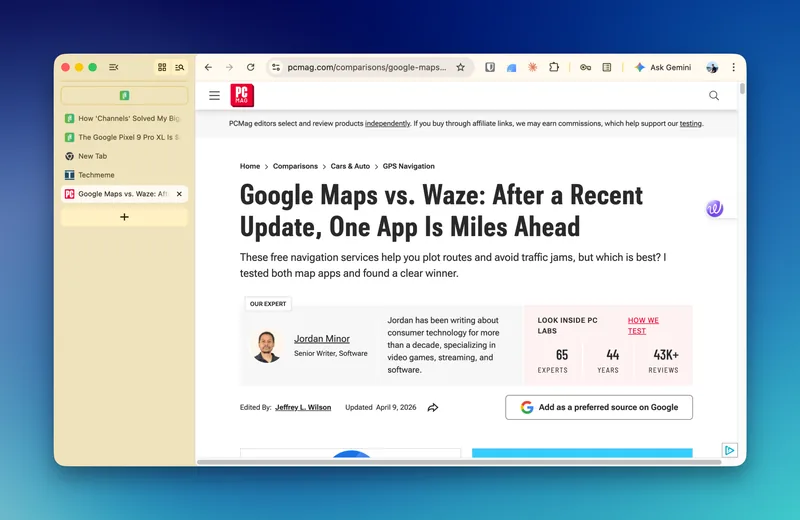
Chrome also offers a compact mode. Click the 'Collapse Tabs' icon at the top of the sidebar, and only favicons remain visible. Hovering over them reveals the tab titles. This is perfect for maximizing screen real estate when you're deep into focused work. You can still organize tabs into groups and utilize the search function, making it a robust system for managing extensive browsing sessions. This is why you should be exploring Chrome's vertical tab capabilities.
Firefox
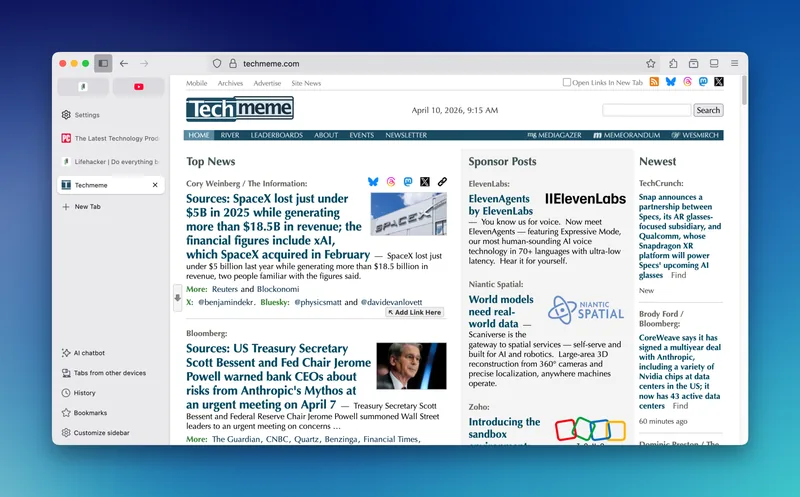
Firefox integrates vertical tabs within its customizable sidebar. To enable them, go to Settings > General > Browser Layout and toggle Vertical Tabs. Ensure the main Show sidebar option is also enabled. Within the sidebar, you can customize shortcuts and even opt for a compact view where only favicons are shown, expanding on hover. This flexibility allows you to tailor the experience to your specific workflow, making it easier to manage research or project-related tabs.
Microsoft Edge
Microsoft Edge, built on the same Chromium engine as Chrome, offers a similar vertical tab experience. Head to Settings > Appearance > Tab Actions and select Show vertical tabs. You can easily toggle the sidebar from the toolbar. Like Chrome, Edge places pinned tabs at the top and provides a collapse option for a cleaner look. This consistency across Chromium-based browsers makes the transition seamless for many users.
Zen Browser: Vertical Tabs by Default
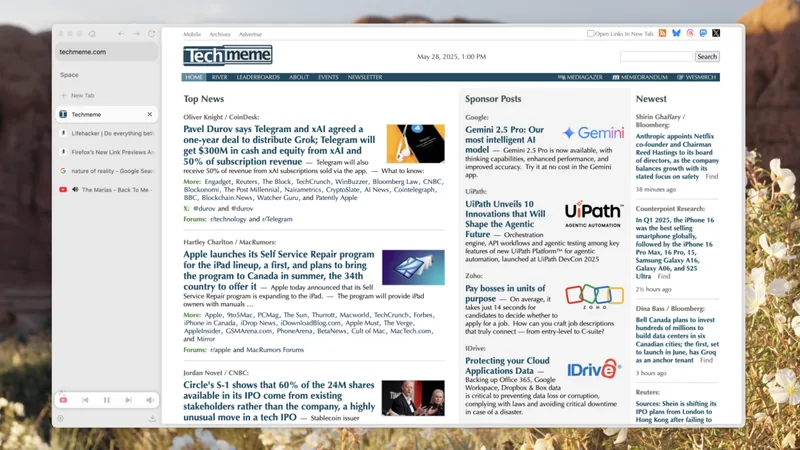
For those who want vertical tabs from the moment they install a browser, Zen Browser is a compelling option. Currently in beta, it's designed from the ground up with a sidebar interface. It uses a unique 'workspace' system to compartmentalize different projects or aspects of your digital life, each with its own set of pinned tabs. This is why you should be paying attention to Zen if organization is paramount. It also includes a compact mode that hides the sidebar until you need it, offering a clutter-free browsing experience.
Embracing vertical tabs isn't just about aesthetics; it's about a fundamental improvement in how you interact with information online. By reclaiming space and providing clearer visibility into your open pages, you reduce cognitive load and boost efficiency. Whether you're a student juggling research papers, a developer managing multiple project boards, or a creative professional pulling inspiration from disparate sources, the clarity offered by vertical tabs is undeniable. This is why you should be making the switch today. It's a simple change that unlocks a more organized and productive digital life. The real question is, why you should be waiting any longer to try it?