It's 7:00 AM. The alarm on your brand-new Samsung Galaxy S26 chirps, a stark contrast to the quiet anticipation you feel. You've just unboxed this marvel of technology, a device promising to streamline your life. But beyond the initial setup, how do you truly harness its power? The Galaxy S26, running One UI 8.5, is packed with features that go far beyond basic smartphone functions. If you're looking to get the most out of your investment, understanding these clever hacks every Samsung Galaxy owner should know is paramount.
Transform Your Phone into a Desktop Powerhouse
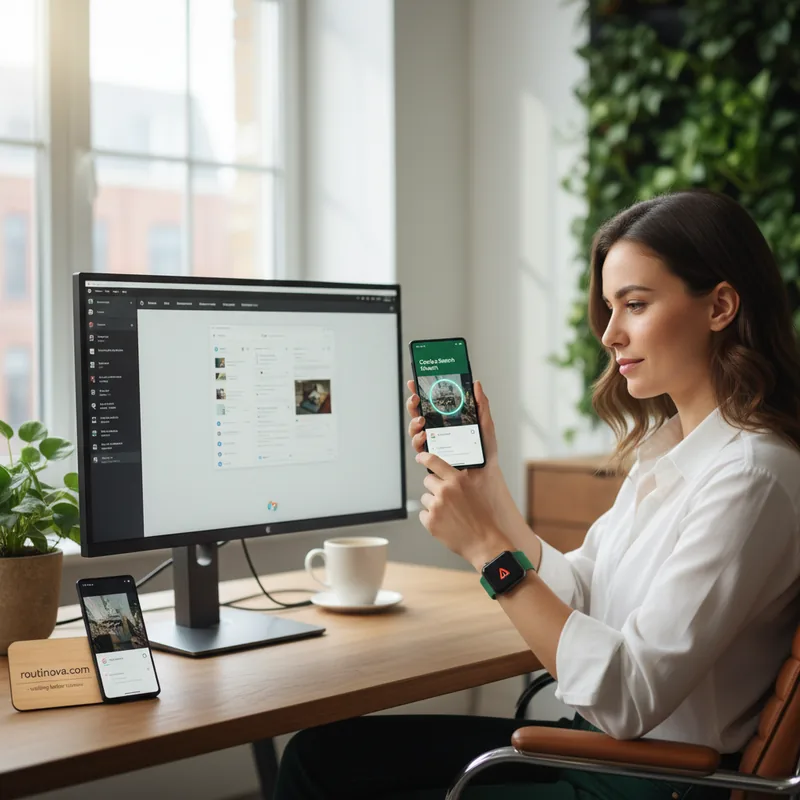
One of the most impressive, yet often underutilized, features of Samsung's flagship devices is DeX. It's your pocket-sized computer waiting to be unleashed. Imagine plugging your Galaxy S26 into a monitor, connecting a mouse and keyboard, and suddenly you have a full desktop experience. This isn't just a mirror of your phone screen; it's a dedicated, optimized interface for multitasking. With One UI 8.5, DeX offers enhanced multi-window capabilities, allowing up to four separate desktop spaces, each capable of holding five apps. This makes managing complex projects or juggling multiple communication channels a breeze. To activate it, navigate to Settings > Connected devices > Samsung DeX.
This desktop environment is perfect for professionals on the go or anyone who needs a more robust computing experience without carrying a laptop. Think about editing documents, responding to emails with proper formatting, or even light graphic design--all from your phone. The flexibility it offers is truly remarkable, turning a device you carry everywhere into a versatile workstation (Samsung, 2024).
Elevate Your Visual Communication and Privacy
Your Galaxy S26 isn't just for calls and apps; it's also a top-tier tool for content creation and secure communication. First, consider its potential as a high-quality webcam. Gone are the days of grainy laptop cameras. Simply connect your S26 to your computer via USB-C, select 'Webcam' from the notification, and voilà! Your video calls and recordings will instantly look more professional. This is especially valuable for those using desktop setups or seeking superior image quality compared to integrated webcams. The ability to position your phone precisely offers unmatched flexibility for framing your shots.
For the Ultra model owners, the Privacy Display is a revelation. This feature dramatically reduces the viewing angle of your screen, making it nearly impossible for onlookers to snoop on your sensitive information. It's ideal for crowded commutes or public spaces. You can find this under Settings > Display > Privacy Display and even set it to activate automatically when you're entering a PIN or password. The 'Maximum privacy protection' setting offers an intense level of obfuscation, though it may impact normal viewing clarity.
Beyond visual privacy, your phone's security can be proactively managed. The Inactivity restart feature, found under Settings > Security and privacy > More security settings, automatically reboots your phone after 72 hours of inactivity. This action places the device in a Before First Unlock (BFU) state, enhancing security by disabling biometrics and temporarily blocking notifications until you unlock it with your PIN or password. It's a smart, passive layer of protection against potential threats (TechInsider, 2024).
Optimize Your Workflow and Media Experience
Streamlining daily tasks and enhancing your media consumption are key to maximizing your Galaxy S26 experience. The Quick Panel, accessible by swiping down from the top-right corner, can be fully customized. Tap the pen icon to edit buttons, resize sliders, and add or remove controls to tailor it to your exact needs. This means your most-used functions are always just a swipe away, saving precious seconds throughout your day.
For seamless connectivity, your S26 intelligently manages your network. Under Settings > Connections > Wi-Fi, the 'Switch to mobile data with AI' option automatically transitions you to cellular data if your Wi-Fi signal becomes unstable. This ensures uninterrupted browsing and streaming, especially when you're on the move. It's a subtle yet powerful AI implementation that enhances your mobile experience without you even noticing.
When it comes to your videos, Audio Eraser is a game-changer. Introduced on the S25 and enhanced in One UI 8.5, this feature allows you to reduce distracting background noise or boost specific audio elements in real-time. Simply access it via the Quick Settings panel while a video is playing. You'll find sliders to control background noise and enhance voice or music, ensuring your recordings sound crisp and clear, free from unwanted ambient sounds. This works across various apps, making all your video content sound better.
The Galaxy S26 series also brings advanced scam detection directly to your Phone app. By enabling 'Scam Detection' in the app's settings, the device uses on-device Gemini AI to analyze incoming call audio for fraudulent patterns. You'll receive an on-screen alert and haptic feedback if a potential scam is detected, giving you the power to end the call immediately. For your most private photos and videos, the Private Album feature within the Gallery app offers a secure, PIN- or fingerprint-protected space to store sensitive media without needing a separate app or Samsung account.
Finally, for the S26 Ultra, the Horizon Lock feature in the Camera app is a must-try for videographers. When shooting in Super Steady Video mode, Horizon Lock keeps your video's orientation stable, preventing unwanted tilting or rotation even if you twist your phone dramatically. This results in incredibly smooth, professional-looking footage, regardless of your movement. These advanced hacks every Samsung Galaxy owner should know truly transform the device from a smartphone into an indispensable productivity and creative tool.