Imagine effortlessly copying text from your Windows PC and pasting it directly onto your Samsung Galaxy phone, or dragging files between them as if they were just different windows on the same screen. For years, Apple users have enjoyed this kind of seamless integration with their iPhones and Macs, a feature they call Continuity. While the rest of the tech world has been playing catch-up, Samsung and Microsoft have made significant strides, culminating in the expanded capabilities of Samsung's Galaxy Connect app. Now, this powerful suite of tools isn't just for Galaxy Book owners; it's available to anyone with a Windows 11 PC, bridging the gap between your phone and computer like never before.
Unlock Cross-Device Synergy
The magic behind Samsung's ecosystem integration lies within the Galaxy Connect app. Previously exclusive to Samsung laptops, this app has now opened its doors to a wider audience. If you're running Windows 11 on a PC powered by an Intel or AMD chip (ARM-based PCs are not yet supported), you can download Galaxy Connect from the Microsoft Store and start experiencing enhanced productivity. This expansion is a game-changer for anyone juggling multiple devices, aiming to replicate that coveted Apple-like fluidity.
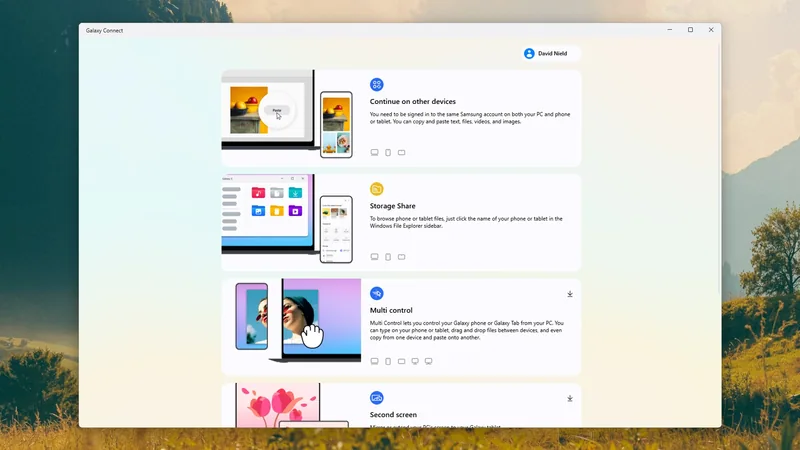
Getting started is straightforward. Once you've downloaded the Galaxy Connect app, you'll need to sign in with your Samsung account. This is the same account you likely use for your Galaxy phone, ensuring a secure and personalized connection. After logging in, you'll find four key features designed to streamline your workflow.
Core Galaxy Connect Features
The first major feature is Continue on other devices. This is your gateway to effortless copy-pasting between your PC and phone. Imagine finding a great article online on your laptop and instantly having the text ready to paste into a message on your phone. It works both ways, making information transfer incredibly convenient. For this to function, both your PC and your Galaxy phone need to have Bluetooth enabled and be connected to the same Wi-Fi network.
Beyond simple copy-paste, this feature also syncs Wi-Fi network information. Connect your Windows 11 laptop to a new network, and your Galaxy phone will recognize it, often pre-filling the password for a one-tap connection. This small convenience adds up, saving you the hassle of re-entering credentials.
Samsung also touts a Camera continuity feature, which theoretically allows you to capture photos or scan documents on your phone and immediately work with them in PC apps like Samsung Notes. While the exact implementation can be a bit elusive and may require further refinement from Samsung, the potential for quick document sharing and photo integration is exciting.
Next up is Storage Share, a feature that feels long overdue in the world of cross-device compatibility. After enabling it within Galaxy Connect, you gain a new entry in Windows 11's File Explorer. This provides direct access to your phone's storage, allowing you to easily transfer files between your PC and phone without needing clunky syncing software or physical cables. It's a direct, no-fuss method for swapping photos, documents, or videos, finally bringing a much-needed simplicity to file management.
Advanced Integration Tools
The remaining two features, Multi control and Second screen, offer deeper integration but require additional downloads from the Microsoft Store. These aren't simple toggle switches; they unlock more complex interactions.
Multi control is perhaps the most impressive. It allows you to control your Galaxy phone directly from your Windows PC. You can arrange your phone's display as if it were a secondary monitor, and then simply move your PC's cursor off the edge of your screen to take control of your phone. Your mouse and keyboard become your phone's input devices, making it incredibly easy to type messages, select apps, or even drag and drop content directly from your phone back to your PC's desktop. This is perfect for quickly responding to a text message without picking up your phone or transferring a screenshot from your phone to a presentation on your laptop.
Second screen transforms a Galaxy tablet (not smartphones, unfortunately) into an extension of your PC's display. Similar to Multi control, you can position your tablet relative to your main monitor. This provides extra screen real estate for keeping apps, reference materials, or entertainment content out of the way of your primary workspace. Imagine having your video call on the tablet while working on a document on your main screen, or keeping a live sports feed running on the tablet during a work session.
Microsoft Phone Link: An Alternative
It's worth noting Microsoft's own offering, the Phone Link app. If you encounter any issues with Galaxy Connect or prefer a more integrated Windows experience, Phone Link offers many similar functionalities. It supports file swapping and clipboard syncing, and adds features like mirroring your phone's screen on your PC, managing notifications, texts, and calls directly from your desktop. You can use Phone Link alongside or instead of Galaxy Connect, providing flexibility in how you connect your devices.
With these advancements, the lines between your Windows PC and Samsung Galaxy phone are blurring, offering a more unified and productive digital life. The samsung galaxy connect now feature set makes it easier than ever to manage tasks across devices.