Ever found yourself mid-game, utterly engrossed, only for your powerful gaming laptop to start sputtering, throttling, or worse--dying a slow, pixelated death? You're not alone. While gaming laptops promise portable power, unlocking their full potential often feels like deciphering an ancient scroll.
The truth is, getting top-tier performance from your portable powerhouse isn't always plug-and-play. It requires a strategic approach to power management, cooling, and software optimization. But don't worry; you don't need to be a tech wizard. These crucial hacks every laptop gamer needs to master will transform your experience from frustrating to fluid.
Maximize Core Performance: Power, Cooling, and Speed
The foundation of any great gaming session lies in how effectively your laptop manages its core resources. Neglecting these basics can turn a high-end machine into a frustrating bottleneck. Mastering these core hacks every laptop gamer can implement is your first step towards uninterrupted play.
Power Up Properly: The Charger You Choose Matters
Think of your gaming laptop's charger not just as a power cord, but as its lifeblood. Unlike a standard work laptop, a gaming rig demands a massive influx of power to fuel its high-performance GPU and CPU, especially during intense gameplay. Using the proprietary charger isn't just a suggestion--it's essential.
Many gaming laptops ship with chunky, purpose-built chargers designed to deliver 180W, 230W, or even more. A generic USB-C charger, while convenient for light tasks, often supplies a paltry 65W. This means that even while plugged in, your laptop might be slowly draining its battery under heavy load, leading to performance dips and eventual shutdowns. Always reach for the charger that came in the box. (Routinova Tech, 2024)
Keep It Cool and Clear: Ventilation is Vital
Gaming laptops are notorious for running hot. Modern components generate significant heat, and efficient cooling is the only way to prevent thermal throttling--where your laptop deliberately slows itself down to avoid overheating. This is why proper ventilation isn't just a nicety; it's a necessity.
Ensure your laptop's vents, typically located on the bottom and sides, are always unobstructed. Placing your device on soft surfaces like blankets or pillows is a surefire way to suffocate its cooling system. Invest in a hard, flat surface or, even better, a dedicated cooling pad. Active cooling pads, with their built-in fans, can significantly enhance airflow, pushing cool air into your system and drawing hot air away. Don't forget to periodically blow out dust from the vents with compressed air; a clogged system is an inefficient one.
SSD for Speed and Storage: Shave Off Loading Times
If you're still running games off a traditional Hard Disk Drive (HDD), you're missing out on a fundamental performance boost. Solid State Drives (SSDs) offer dramatically faster read and write speeds, translating directly into quicker boot times for your operating system and, more importantly, near-instantaneous loading screens in your favorite games. That moment of anticipation before a boss fight shouldn't be spent staring at a progress bar.
Most modern gaming laptops come with an SSD, but if yours doesn't, or if you're running out of space, consider an upgrade. For those with massive game libraries, an external SSD connected via Thunderbolt 4 or 5 can provide desktop-like speeds for game installs without hogging internal storage. Just make sure your external drive uses a high-speed connection to avoid creating a new bottleneck. (Gaming Insights, 2023)
Optimize Gameplay & Longevity: Battery, Settings, and Cleanliness
Beyond raw power, smart adjustments to your laptop's settings and diligent maintenance can significantly extend your gaming sessions and overall device lifespan. These smart hacks every laptop gamer can use to extend playtime and maintain performance are all about balance.
Preserve Battery Life Strategically: Display and Frame Rates
Portable gaming means relying on battery power, but gaming laptops are notoriously power-hungry. When you're untethered from a wall socket, every watt counts. You can significantly extend your playtime by making a few conscious adjustments.
First, consider your display's refresh rate. While 120Hz or 144Hz offers buttery-smooth visuals, it also sips battery like a thirsty monster. Use Windows settings or your laptop manufacturer's bundled software (like Razer Synapse, MSI Dragon Center, or Asus Armoury Crate) to dial down the refresh rate to 60Hz when on battery. Similarly, reducing your in-game frame rate to a stable 60 FPS for single-player titles can dramatically cut power consumption. Ray tracing, while visually stunning, is also a huge power draw. Unless you're showcasing graphics, consider disabling it when unplugged.
Banish Bloatware, Boost Performance: Clean Up Your Digital Space
Manufacturers love to pre-load devices with software you never asked for--and often don't need. This "bloatware" can silently hog system resources, running in the background and competing with your games for precious CPU cycles and RAM. It's like trying to race with a parachute strapped to your back.
Take control by uninstalling unnecessary programs through Windows' "Add or Remove Programs" feature. For a deeper dive, press Ctrl-Shift-Esc to open Task Manager. Here, you can identify resource-hungry processes and, crucially, check the "Startup" tab to prevent unwanted applications from launching automatically. Common culprits include unnecessary anti-virus trials, redundant system optimizers, and even some pre-installed communication apps. Be cautious, but don't be afraid to clean house. (PC World, 2023)
Enhance Your Setup & Experience: Docks, Upgrades, and Smart Software
Once the core performance is dialed in, it's time to elevate your overall gaming environment. These advanced hacks every laptop gamer can leverage to create a truly personalized and powerful setup will make you forget you're even on a laptop.
The Docking Station: Your Gateway to a Desktop Feel
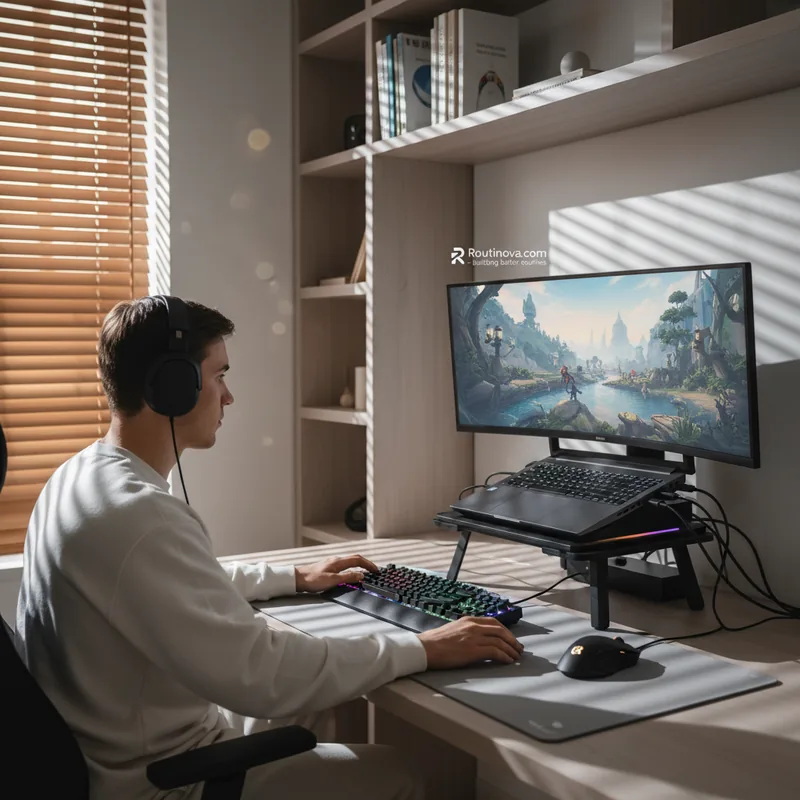
A gaming laptop is fantastic for portability, but sometimes you crave the expansive experience of a full desktop setup. A quality docking station bridges this gap, transforming your laptop into the hub of a powerful battlestation. Imagine connecting an external monitor, a mechanical keyboard, a precision gaming mouse, and external speakers--all through a single cable to your laptop.
Higher-end docks can even deliver sufficient power to keep your laptop charged during gameplay, though it's wise to verify the dock's power output against your laptop's requirements. If there's any doubt, simply plug in your laptop's proprietary charger alongside the dock for peace of mind. This setup offers the best of both worlds: a powerful, portable machine that can seamlessly transition into a formidable home rig.
Smart Hardware Upgrades: Breathe New Life into Your Machine
While laptops are generally less upgradeable than desktops, many gaming models offer surprising flexibility. Before you consider a whole new system, check if your current machine supports RAM or storage upgrades. Adding more RAM, even if it's slightly slower than your existing sticks, can significantly improve multitasking and game performance, especially for titles that are memory hogs. (Digital Foundry, 2024)
Swapping out an older, smaller SSD for a larger, faster NVMe drive is another impactful upgrade. It's often easier and more cost-effective than you might think, and can dramatically improve load times and overall system responsiveness. Always consult your laptop's manual or manufacturer's website for compatible components and installation guides.
Windows Game Mode: Uninterrupted Play
Windows has a built-in "Game Mode" designed to optimize your system for gaming. When active, it prioritizes your game's processes, minimizing background tasks and preventing intrusive notifications or automatic driver updates from derailing your session. Think of it as putting your laptop into "focused mode" for gaming.
To activate, navigate to Start menu > Settings > Gaming > Game Mode and toggle it "On." While it usually provides a subtle but noticeable performance bump, keep an eye out for any unexpected glitches with specific games. If an issue arises, simply toggle it back off. It's a quick, free tweak that can smooth out your gameplay.
RGB for Utility, Not Just Aesthetics: Smart Lighting
Gaming laptops are almost synonymous with dazzling RGB lighting. But those vibrant LEDs aren't just for show; they can be incredibly functional. Most gaming laptop manufacturers provide software that allows you to customize keyboard lighting profiles for specific games.
Imagine your WASD keys glowing brightly, or critical ability keys highlighted in a distinct color. Some advanced profiles can even react to in-game events, like a health bar turning red or abilities coming off cooldown. It's a small touch, yes, but it's a powerful way to personalize your setup, enhance muscle memory, and immerse yourself deeper into the game world.
By integrating these powerful hacks every laptop gamer can achieve not just better frame rates, but a more enjoyable, reliable, and personalized gaming journey. Happy gaming!