Imagine a digital workspace so fluid, so intuitive, it anticipates your needs before you even articulate them. For years, the browser has been our portal to the world, a constant companion in our quest for information, connection, and creation. But what if your browser could do more than just fetch pages? What if it could actively enhance your workflow, declutter your digital life, and even inject a bit of joy into your daily tasks? For many, Opera has quietly been evolving into that very tool, packing a surprising array of features beneath its familiar facade. If you're looking for hacks every Opera browser user should know to truly master their digital experience, you've come to the right place.
Embrace the Cutting Edge with Early Bird Features
For the tech enthusiasts among us, the thrill of discovering new functionalities before anyone else is a significant draw. Opera caters to this desire with its "Early Bird" program. This isn't just about minor tweaks; it's your gateway to experimental features that could redefine your browsing habits. Think of it as a backstage pass to Opera's innovation pipeline.
To dive in, simply navigate to Opera's full browser settings via the three-line menu. Scroll down and toggle on Early Bird. You'll then be presented with a curated list of upcoming features. At present, this includes tools like Browser Connector, which seamlessly integrates AI assistants like ChatGPT or Claude, and Sharing Point, a nifty utility for sharing download links with contacts. Remember, these are experimental, so they might evolve or even disappear, but trying them out offers a unique glimpse into the future of web browsing (Opera, 2024).
Your Command Center: The Integrated Sidebar
Tired of juggling countless applications for communication and productivity? Opera's sidebar offers a surprisingly elegant solution. It's like having your essential apps--from AI chatbots to email and social media--conveniently docked to the left of your browser window.
Services like ChatGPT, Gemini, Gmail, Google Calendar, WhatsApp, Telegram, and even music streaming platforms can be pinned here. They function much like their standalone counterparts, but within a consolidated, easily accessible pane. Imagine managing your inbox, chatting with colleagues on Telegram, and listening to Apple Music, all without leaving your browser tab. This integration significantly reduces desktop clutter and streamlines task management. You can customize the sidebar by clicking the three-dot button in the bottom-left corner, offering a truly personalized command center (Lifehacker, 2023).
While these sidebar versions might occasionally lack niche features found in full desktop apps (like Spotify's music downloads), their overall utility is substantial. They appear in floating windows, which you can even pin to your screen for constant visibility.
Elevate Your Workflow: Multitasking and Focus
In today's information-dense world, efficiently managing multiple tasks is key. Opera provides two powerful features to enhance your multitasking capabilities: Split Screen and Picture-in-Picture (PiP) transparency.
Split Screen allows you to view two tabs side-by-side. Simply right-click an inactive tab and select Create split screen. This is a revelation for research, allowing you to keep a lecture video playing on one side while referencing notes or a search engine on the other. You can seamlessly interact with both, boosting comprehension and efficiency.
For video enthusiasts, Opera's PiP mode comes with an often-overlooked transparency control. If you find yourself constantly moving the PiP window to avoid obscuring important text, this feature is a lifesaver. Navigate to Opera settings > Video and enable Make pop out transparent. Alternatively, you can adjust transparency per video by clicking the transparency button in the PiP window's top-left corner. This allows you to keep an eye on content without sacrificing your primary work view (TechCrunch, 2023).
Fine-Tuning Your Browser: Ads, AI, and Audio
Opera doesn't just offer broad features; it excels in providing granular control over your browsing experience, from ad-blocking to audio management.
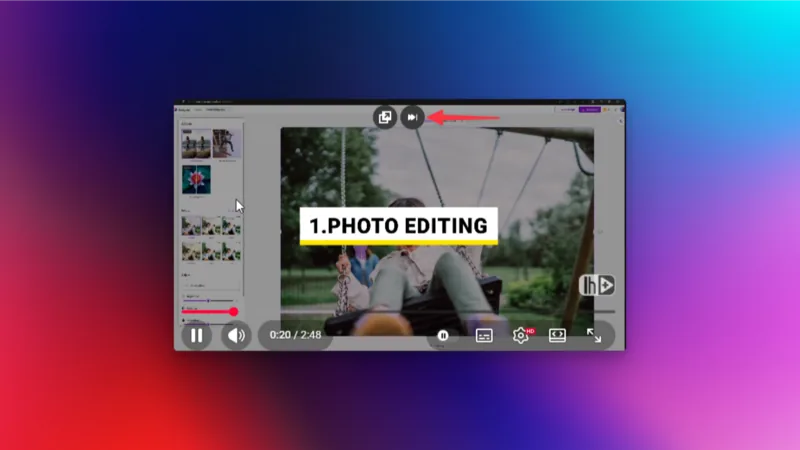
Ever been stuck with an unskippable YouTube ad? Opera's Video Skip feature offers a solution. A small forward button appears at the top of the ad, allowing you to jump to the end instantly. If you prefer not to see this button at all, you can disable it in Opera settings > Video. This is one of the many useful hacks every Opera browser user can leverage for a smoother video experience.
Opera also integrates AI features, but thankfully, they are easily managed. If you find them distracting, you can disable them via Opera settings > Opera AI, deactivating both the main AI toggle and ChatGPT in the sidebar. You can further refine this by unchecking specific AI options like ChatGPT and Gemini from the sidebar's three-dot menu.
Volume control is another area where Opera shines. Instead of relying on extensions, Opera lets you adjust the volume of individual tabs. Hover over a tab with playing media, and a volume slider appears, allowing you to boost it up to 500% or mute it entirely. This is incredibly useful for balancing multiple audio sources, like a quiet podcast and a loud video.
Unlock Hidden Power: Privacy and Efficiency Hacks
Beyond the everyday features, Opera harbors advanced options for privacy-conscious users and those seeking peak efficiency. One of the most powerful hacks every Opera browser user should explore is the enhanced privacy mode.
To activate this, type opera://flags into your address bar and search for Enhanced privacy settings section. Enable it and then, in Opera settings > Privacy & security, turn on Enhanced privacy protection. While this might occasionally affect website functionality, it significantly boosts your defense against trackers (Mozilla Foundation, 2024).
For those who live by the keyboard, Opera's advanced keyboard shortcuts are a game-changer. You can enable them in Opera settings > Features > Shortcuts. Once activated, single-key commands can cycle through tabs (1 and 2), find text on a page (/), navigate back (Z) or forward (X), zoom (0, 8, 9, 7, 6), and even return to your previously active tab (Ctrl-`). These aren't just minor conveniences; they represent significant time savings for power users.
Finally, Opera's built-in Snapshot tool is surprisingly robust. It allows you to capture visible page sections, the entire webpage, or save content directly as a PDF. After capturing, you get a preview window for basic edits and annotations, making it a versatile tool for saving and sharing web content without needing third-party software.