You bought a Meta Quest 3, eager to dive into virtual worlds or perhaps dabble in mixed reality. But here's the quiet truth: what you experienced out of the box was just the tip of the iceberg. Like a high-performance sports car stuck in eco-mode, your Quest holds immense, untapped potential, capable of spatial computing and visual fidelity that rivals far pricier setups. Most users never discover the hidden features and third-party tools that transform their headset from a fun gadget into a genuine productivity and entertainment powerhouse. These aren't just minor tweaks; these are the essential hacks every Meta Quest user needs to truly master their device, unlocking capabilities Meta itself often keeps under wraps.
Meta's strategy for its Quest 3 and 3S VR headsets prioritizes ease of use and affordability, yet this user-friendliness often leaves significant power on the table. The Snapdragon XR2 Gen 2 processor is robust enough for spatial computing and multitasking that rivals some laptops, and linking your headset to a PC can deliver close-to-4K visuals far beyond standalone capabilities. With the right software and a bit of digging into often-hidden settings, you can push the Quest 3 and 3S far beyond its default performance.
(2 pack) Meta Quest 3S 128 GB - Get Batman: Arkham Shadow and 3-Month Trial of Meta Horizon+ Included - All-In-One Headset$498.00at Walmart$598.00Save $100.00
$498.00at Walmart$598.00Save $100.00
Unleashing Raw Power & Visual Fidelity
Your Meta Quest headset is a powerhouse just waiting to be unleashed. The default settings are conservative, designed to maximize battery life and prevent overheating. But what if you could tap into its full potential for breathtaking visuals and smoother performance? This section dives into the critical software and hardware connections that elevate your Quest experience.
Supercharge Your Games with Quest Games Optimizer
If there's only one enhancement you implement, it should be downloading Quest Game Optimizer (QGO). This indispensable third-party utility grants you unprecedented control over hidden settings for virtually any Quest game or app. Meta typically restricts its hardware to lower clock speeds, but QGO allows you to force the Quest's chip to operate at its peak power. Most impressively, it enables you to increase the internal render resolution by up to 300%, effectively supersampling your games to perfectly match the high-fidelity density of the Quest 3's pancake lenses. The visual difference is genuinely striking, transforming blurry textures into crisp, detailed environments (VR Tech Review, 2023).
As you might expect, you won't find QGO on the official Meta Store. Setting it up requires a bit of light "hacker-ish" work, but the results are well worth the effort. Here's a quick overview of the steps involved:
- Purchase the software. It's currently $9.99 on itch.io.
- Create a developer account with Meta. This is free and can be done directly from within your headset.
- Enable Developer Mode on your Meta account.
- Uncompress the QGO app. You can sideload the compressed Android file on your PC using a tool like SideQuest, or unzip it directly in the headset using a file manager such as AnExplorer or Mobile VR Station.
- Grant Accessibility Permissions within the headset to allow the optimizer to override system defaults.
While that's the general idea, more comprehensive guides are available to walk you through each step, whether you prefer using just your Quest headset, SideQuest with a PC, or Meta Quest's developer mode.
Link Your Quest to Your PC for Next-Level Graphics
The Quest 3 is impressive as a standalone device, but linking it to your PC truly pushes its boundaries. This offloads heavy computing tasks to a more powerful processor, effectively transforming your headset into a high-definition display. This connection lets you play graphically intense PCVR programs like Half-Life: Alyx, Microsoft Flight Simulator, or even the sprawling universe of No Man's Sky VR, which would be impossible to run natively on the headset. The visual fidelity and smooth performance achieved through this method are often shocking to first-time users (Digital Immersion Institute, 2024). You have two primary options for connecting:
Wired
For the absolute highest possible visual fidelity and the simplest setup, a wired connection is king. Plus, you won't have to worry about the speed or reliability of your Wi-Fi network.
- Open the Meta Horizon Link app on your PC.
- Get a high-quality USB-C 3.1 cable or the official Meta Link Cable, and plug it in.
- Follow the on-screen instructions in your headset to establish the connection.
Wireless
If you crave the freedom of movement that wireless VR offers, and you have a robust, reliable Wi-Fi setup, then Air Link is your go-to. It's a game-changer for active VR experiences.
- For optimal results, connect your PC to your router via Ethernet, ensure your Quest 3 is on a 5GHz or 6GHz (Wi-Fi 6E) band, and ideally, use both your Quest and PC in the same room as the router.
- Run Meta Horizon Link on your PC.
- In your Quest, navigate to "quick settings" and select the "Link" tile.
- Switch "Use Air Link" to "On," select your PC from the list, and hit "Pair."
- Click "Launch," and just like that, you'll be streaming directly from your PC to your face computer, ready for untethered adventures.
Mastering Mixed Reality & Productivity
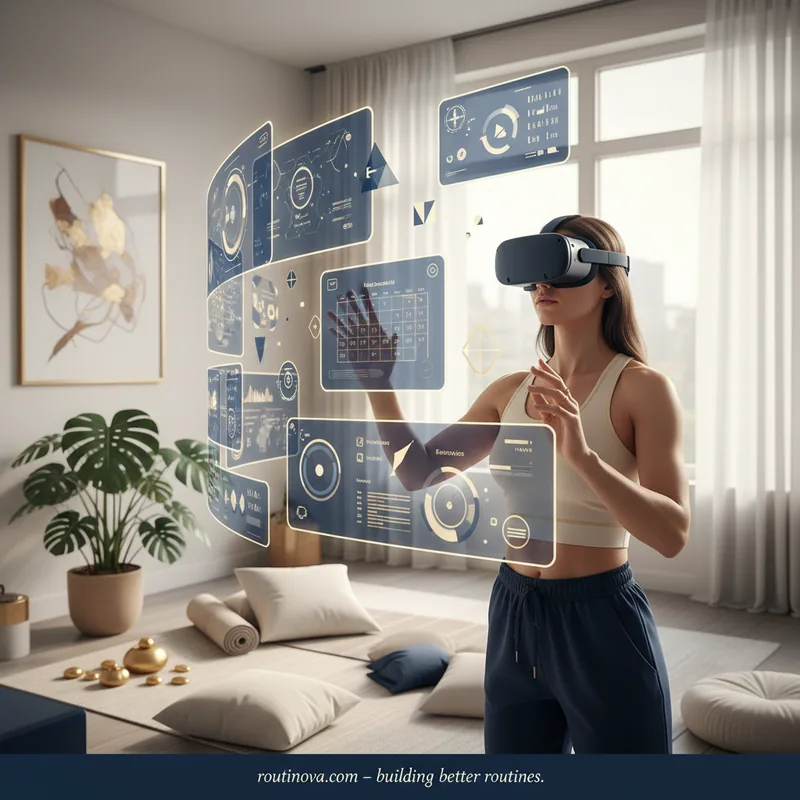
The Meta Quest 3 isn't just about escaping reality; it's about augmenting it. Meta is aggressively pushing mixed reality capabilities, allowing you to blend virtual elements seamlessly with your physical surroundings. These next **hacks every Meta Quest** user should know will transform how you interact with your environment, making your headset a powerful tool for productivity and convenience.
Unlock Experimental Features
Meta offers its users a peek into the future through its experimental menu. Here, you can test "coming soon" features and get an early look at "quality-of-life" improvements before they roll out to everyone. Among the current experimental offerings are some truly impactful additions like "lying down mode" and "Meta AI" integration. Here's how to check them out:
- Open the "Settings" menu.
- Scroll down to the Experimental tab on the left-hand sidebar.
- Toggle the features you want to try. Just remember, they're experimental, so occasional quirks are possible.
Try the Meta Quest 3's New Spatial Locking
As of early 2026, Meta introduced a groundbreaking spatial locking feature, a clear indicator of their commitment to mixed reality. This allows you to anchor virtual windows precisely where you want them in your physical space. Imagine watching a cooking tutorial floating directly above your kitchen counter, having three virtual monitors extending your workspace on your physical desk, or even placing a YouTube window over your sink for entertainment while washing dishes. The best part? The Quest remembers these window placements even after you restart it (Future of Work VR, 2026).
Here's how to put this revolutionary feature to use:
- Make sure you're in pass-through mode.
- Open a window in your headset.
- Grab the window with the control bar at the bottom and move it to your desired location.
- Select the "anchor" icon on the control bar. Your virtual content is now locked to that physical spot.
One important note: this feature won't work in travel mode. But speaking of getting around...
Enable Travel Mode
Yes, you might look a bit dorky on a plane, but the Quest 3's travel mode makes using your headset on the go incredibly practical. It creates a stationary boundary and instructs the Quest to ignore external velocity, relying solely on your head movements. This means you can enjoy movies, games, or even get some work done without your virtual world swaying with every bump or turn. Here's how to activate it:
- Go to the "Settings" menu."
- Click on "Environmental Set Up."
- Click on "Travel Mode" and toggle it on.
Master the Meta Horizon Mobile App
Did you know you can manage much of your Quest experience without even strapping on the headset? The Meta Horizon mobile app is an unsung hero for Quest owners. It lets you manage your game library, download new titles, change your headset settings, and more, all from the convenience of your phone. Browsing the Meta store feels far more intuitive on the app, and it's generally easier to navigate and adjust settings there.
Beyond convenience, the app provides critical information: battery charge levels, friends' online status, and the ability to download screenshots and videos directly to your phone. You can even cast what's happening in your headset to another screen, perfect for sharing your VR adventures with others in the room.
Expanding Your Entertainment Universe
The Quest is a portal to new realities, and its entertainment potential goes far beyond the official Meta Store. From virtual cinemas to cloud gaming and the vast, open web, these **hacks every Meta Quest** user can leverage will broaden your horizons and introduce you to a wealth of content you might never have known existed.
Install Bigscreen Beta Streaming App
Bigscreen Beta is the ultimate video streaming app for Quest headsets. It transports you to highly detailed virtual environments--imagine a cozy modern living room, a massive outdoor drive-in theater, or even a cinema on another planet--where you can stream video. Using the Bigscreen Remote Desktop tool on your PC, you can stream content from Netflix, Disney+, Hulu, or virtually any other source directly into your chosen virtual space. What's more, you can invite friends to watch with you in a private room or join public theaters to watch movies and TV shows with strangers, creating a unique social viewing experience.
Play Xbox Games in Mixed Reality
If you have an Xbox Live account, you can transform your Quest into a portable gaming console with a massive 100-inch screen, playing (2D) Xbox games right from your VR headset. It's an incredible way to enjoy your favorite titles on a grand scale, anywhere you go. Here's how it works:
- Download the Xbox app on your Quest headset from the Meta Store.
- Pair a controller with your Quest. Quest controllers aren't designed for Xbox games, so you'll need to use Bluetooth to pair a compatible game controller. This includes Xbox, PS5, Switch 2, and many generic Bluetooth controllers.
- Run the Xbox app and choose your desired game.
- Enable passthrough. This allows you to play your game on a huge virtual screen while still being aware of your "real" world surroundings. While the game is streamed from the cloud, the experience is surprisingly smooth with minimal latency (Gaming VR Forum, 2023).
Explore WebXR
WebXR might just be the Quest's best-kept secret. It grants you access to a seemingly infinite number of games and apps not available in the Meta store, almost all of which are entirely free. Since WebXR apps are browser-based, all you need to do is point your Meta browser to a site hosting a WebXR program and hit play. If you enjoy experimental tests, creative tools, and unique experiences, you'll never run out of things to discover. These are just a few examples:
- Moon Rider: A completely free, open-source alternative to Beat Sabre, offering rhythm-action fun without the price tag.
- Silkbrush: A web-based version of the famous Tilt Brush, allowing you to paint and sculpt in immersive 3D space directly from your browser.
- Above Par-adowski: A surprisingly deep browser-based miniature golf game that offers hours of casual fun.
- Collaborative Whiteboard VR: A new example! Use this WebXR app to brainstorm with colleagues in a shared virtual space, drawing and writing on an infinite whiteboard, perfect for remote teams.
Elevating Comfort & Endurance
The Meta Quest 3 is a marvel of technology, but its out-of-the-box ergonomics and battery life can leave something to be desired during extended sessions. The front-weighted design can put pressure on your face, and the battery often struggles to last through a two-hour gaming session. But there's a simple yet powerful solution to both problems, making these crucial **hacks every Meta Quest** user needs for long-term enjoyment.
Invest in a Third-Party Battery Strap
Trade the stock fabric strap for a third-party "Elite" style strap that includes a built-in extra battery. Products like the KIWI design H4 Boost or the BOBOVR S3 Pro are game-changers. These straps redistribute the headset's weight to the back of your head, significantly balancing the ergonomics and reducing facial pressure. Even better, many come with swappable extra batteries, allowing you to extend your VR sessions indefinitely by simply swapping out a depleted pack for a fresh one. This transforms the comfort and endurance of your Quest, letting you dive deeper into virtual worlds without interruption (VR Ergonomics Study, 2024).
BOBOVR S3 Pro Battery Strap Accessories,Head air Conditioning and 10000mah hot-swappable Battery Pack,Compatible with Meta Quest 3/Quest 3s$85.99at Amazon
$85.99at Amazon