If you've just unboxed your shiny new PlayStation 5, plugged it in, and started playing without a second thought, you're not alone. Most of us do. But here's the thing: you're likely missing out on a treasure trove of hidden power and personalized settings designed to elevate your gaming experience. Your PS5 is a beast, but it needs a little fine-tuning to truly roar. The good news? Unlocking its full potential doesn't require a degree in tech; it just takes a few smart tweaks. These are the essential hacks every PS5 gamer needs to know, transforming your console from good to absolutely phenomenal.
Unleashing Your PS5's Performance Potential
You bought a cutting-edge console for a reason: speed, clarity, and immersion. But simply owning a PS5 doesn't automatically guarantee you're getting the best performance. Think of it like owning a sports car and only driving it in second gear. Let's push that engine to its limits by optimizing your visuals and audio, ensuring every pixel and every sound wave hits just right. After all, the best hacks every PS5 gamer can implement often start with the basics.
Maxing Out Visual Fidelity: 4K and 120Hz
True 4K resolution at a silky-smooth 120 frames per second (fps) is a game-changer. If your TV or monitor supports it, you absolutely need to make sure your PS5 is taking advantage. This isn't just about pretty pictures; smoother visuals can reduce eye strain and even improve reaction times in fast-paced games (Gaming Tech Review, 2023).
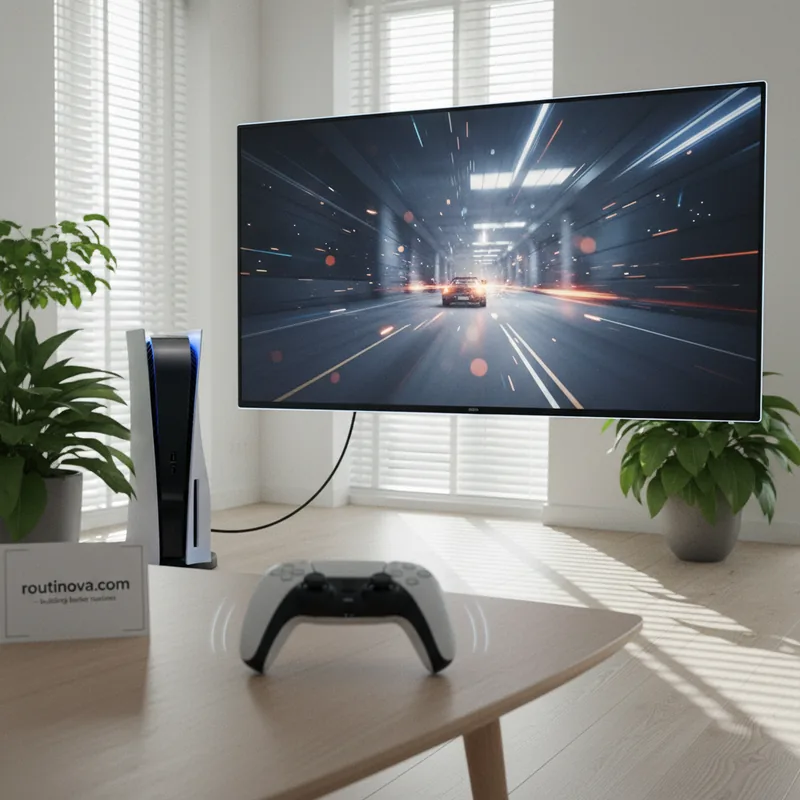
First, a crucial hardware check: Your PS5 needs to be connected with an HDMI 2.1 cable. This isn't optional for high frame rates at 4K. Your console should have come with one – look for the distinct boxy rectangle on either connector. Equally important, ensure you're plugging it into an HDMI 2.1 compatible port on your display. Many TVs will label these ports, often saying something like “4K @ 120Hz.”
Once connected, power up your PS5 and navigate to Settings > Screen and Video. While your console is smart enough to detect basic capabilities, a manual check is always wise. I often leave most settings on 'Automatic' to allow the PS5 to adapt to various content, but it's vital to confirm that 4K (2160p) and 120Hz options are available. If they're not, that HDMI cable or port is likely the culprit.
For a real-time status check, select “Current Video Output Signal” at the top of this screen. You'll see exactly what your PS5 is pushing to your display. One advanced tweak for the adventurous: consider applying Variable Refresh Rate (VRR) to unsupported games. This can enhance visual fidelity, though it might introduce minor instability. Further down, you can also fine-tune HDR display and run through an HDR setup wizard via “Adjust HDR.”
Finally, if your display has an unusual aspect ratio, or you just want to optimize screen space, head to 'Screen' from the left sidebar to adjust your console’s display area. While there, you can also set how long your console waits before dimming the screen if your controller is inactive. And for PS5 Pro owners, there's a special treat: enhance image quality for supported PS4 games under Settings > Screen and Video > Video Output > Enhance Image Quality for PS4 games. It’s a subtle but appreciated upgrade for your legacy library.
Immersive Audio: Beyond Basic Stereo
Sound isn't just background noise; it's a crucial part of immersion. Your PS5 can deliver more than basic stereo, even without a dedicated physical surround sound system. This magic happens thanks to virtual surround sound codecs baked right into the console. To activate these, head to Settings > Sound > Audio Output > Audio Format (Priority).
Here, you'll find options like Linear PCM, Dolby Atmos, Dolby Audio, and DTS. Not all these support virtual surround, and the 'best' choice often depends on your specific setup. For many, Dolby Atmos is a versatile pick, particularly if you have a soundbar, as it supports height data, making a huge difference in games like a horror title where you need to pinpoint sounds above or below you (e.g., a creaking floorboard or a monster lurking on a balcony).
Alternatively, Sony offers its own 3D Audio technology, selectable via 3D Audio (TV) or 3D Audio (Headphones) from the sidebar. While I personally find Dolby Atmos richer for soundbar setups, Sony’s 3D Audio is excellent for those using TV speakers or a headset. It’s definitely worth experimenting with, especially for competitive games where positional audio is key to success. Keep in mind that only Sony's own headsets connect wirelessly directly; other Bluetooth headphones might need a workaround, but the immersive benefits are undeniable.
Tailoring Your PS5 Experience for Comfort & Control
Your PS5 isn't just a powerful gaming rig; it's a personal entertainment hub. Making it truly 'yours' means tweaking the little things that impact your daily interaction. These are the thoughtful hacks every PS5 gamer can use to make their console feel more intuitive and less intrusive.
Silence is Golden: Muting the Startup Beep
Picture this: it’s late, everyone else is asleep, and you decide a quick gaming session is just what you need. You press the power button, and BEEP! The console loudly announces its presence, potentially waking up the whole house. Sound familiar? It’s a common scenario, and thankfully, an easy fix.
To avoid these stealth-gaming compromises, head to Settings > System > Beep and Light. Here, you can toggle on Mute Beep Sound to eliminate that startup chime entirely. If you just want it less jarring, you can adjust the volume instead. While you’re in this menu, you can also customize the brightness of the console’s LED strip under Power indicator > Brightness. Unfortunately, there’s no option to turn it off completely, but dimming it can be a welcome change.
Crafting Your Perfect Welcome Hub
When you power on your PS5, the Welcome Hub greets you with a series of widgets. Did you know you can customize these? It’s one of the most underrated hacks every PS5 gamer should leverage, especially if you find yourself scrolling past ads or irrelevant information. Why waste screen real estate on things you don't care about?
To adjust your PS5 Welcome Hub widgets, simply hover over the Welcome Hub tile and press X. Then, navigate to the controls in the top-right corner. You can choose from Sony’s Presets or dive into Edit Widgets to toggle specific ones on and off. Personally, I disable widgets like News, PlayStation Plus, Wishlist, and PlayStation Store – they often feel more like advertisements than helpful content. Optimizing your home screen can significantly streamline your gaming journey, reducing decision fatigue before you even launch a game (Digital Psychology Journal, 2023).
Before you leave the Welcome Hub setup, check the Settings cog. Here, you can decide if you prefer the carousel-like Large Layout, where temporary notifications appear, and whether widgets should match your broader System Appearance settings. If you keep the News widget active, you can even customize which games feed news into it. To truly personalize it, you can also choose a background for the Welcome Hub, pulling from Sony’s options, game bundles, or your own Media Gallery.
Nostalgia & Style: Customizing Your Console's Look
Beyond functionality, your PS5 can also reflect your personal style, or even a touch of nostalgia. Sony introduced themes that mimic classic PlayStation consoles, a delightful nod to gaming history. This is one of those fun hacks every PS5 gamer can enjoy purely for aesthetic pleasure.
To try these out, go to Settings > System > Appearance > Appearance and Sound and select a console theme you'd like to mimic. Whether you prefer the iconic PS2 theme or the sleek XMB menu of the PS3, it’s a simple way to add a unique touch to your interface. It’s a small detail, but these customization options contribute to a sense of ownership and personal connection with your console.
Mastering the DualSense: Haptics & Ergonomics
The DualSense controller is a marvel of haptic feedback and adaptive triggers, designed to deepen immersion. Yet, out of the box, it might not be delivering its full potential—or it might be a bit too intense for your liking. Fine-tuning your controller’s feedback is among the most impactful hacks every PS5 gamer can make for a more comfortable and responsive experience.
Boosting Controller Responsiveness
Sony is rightly proud of the DualSense’s haptics. But here’s a quirky detail: the controller’s built-in microphone can interfere with the haptics, so Sony intentionally weakened them by default. If you rarely use the controller mic, you're missing out on more intense, nuanced feedback.
You have two ways to fix this. The quickest is to simply press the clear button above the microphone icon on your controller to mute it. This instantly strengthens the haptics until you unmute it, and an orange light will confirm the mic is off. For a more permanent solution that also removes that orange light, toggle on Mute under Settings > Sound > Microphone > Microphone Status When Logged In. Just remember to switch it back to 'On' if you need the microphone again. Ergonomics research suggests customizing controller feedback can reduce hand fatigue during long sessions (Controller Dynamics Institute, 2024).
Taming the Adaptive Triggers
While adaptive triggers are a fantastic innovation, providing resistance that mimics pulling a bowstring or firing a weapon, they can sometimes feel… a bit much. The novelty of the controller fighting back can wear off, especially during long play sessions. Luckily, you don’t have to endure it.
You can customize both the adaptive trigger resistance and general vibration. Go to Settings > Accessories > Controller (General). Here, you’ll find Trigger Effect Intensity to adjust the strength of the adaptive trigger resistance, and Vibration Intensity for the more general rumble. I often set Vibration Intensity to 'Strong' for maximum feedback, but turn Trigger Effect Intensity 'Off' for a more relaxed grip during extended gameplay. It’s about finding the balance that works for your hands and play style.
Smart Storage Solutions for Your Growing Game Library
Modern games are massive. Even with the PS5’s generous internal storage, you’ll quickly find yourself making tough choices about what to keep installed. Expanding your storage is one of the most practical hacks every PS5 gamer needs to consider, especially if you have a diverse game collection.
The PS5 supports installing a compatible M.2 SSD, and the process is surprisingly straightforward, usually only requiring a screwdriver. Sony provides comprehensive guides, and the best part? This new SSD works alongside your existing internal storage, effectively doubling your space. Imagine having Call of Duty, Final Fantasy VII Rebirth, and Spider-Man 2 all installed without deleting anything – that’s the dream.
Once installed, change your Installation Location to M.2 SSD under Settings > Storage. New games will automatically install there. To move existing games, head to your Game Library, highlight the games, press the Options button, and select Move Games and Apps. If you also use USB storage, you’ll then select Movable to M.2 SSD Storage.
Speaking of USB storage, the PS5 also supports external USB drives. While you can play PS4 games directly from these, PS5 games require installation on an SSD. However, a clever workaround for PS5 titles is to offload them to USB storage when not actively playing. This saves you from re-downloading huge files later; when you’re ready to play, simply load it back onto either your console’s internal SSD or your custom M.2 SSD. It’s a smart way to manage your massive collection without constant re-downloads.
Elevating Your Gameplay: Presets & In-Game Assistance
Getting into a new game is exciting, but for many, it starts with a deep dive into the settings menu. Adjusting difficulty, subtitles, and graphics preferences before even starting the adventure is common. These are the thoughtful hacks every PS5 gamer can use to streamline their experience and get help when they need it most.
Setting Your Game Defaults for Instant Play
Sony understands this pre-game optimization ritual. That’s why the PS5 offers Game Presets, a fantastic feature that configures your preferences automatically for supported games. No more manually toggling performance mode or subtitles every single time you start a new title!
Under Settings > Saved Data and Game/App Settings > Game Presets, you can set a range of preferences: preferred difficulty, first-person or third-person perspective (if available), language, subtitle defaults, online multiplayer permissions, and crucially for many, whether your games prioritize Performance Mode or Quality Mode (labeled Resolution Mode here). For me, defaulting to smooth performance over the prettiest visuals is a non-negotiable hack.
Your Personal In-Game Guide: Game Help
We’ve all been there: stuck on a boss, lost in a labyrinthine level, or stumped by a puzzle. Instead of pulling out your phone and sifting through internet walkthroughs (and risking spoilers), the PS5 offers its own Game Help feature. It's not available for every title, but when it is, it's a lifesaver.
Simply press the PlayStation logo button on your controller, and if available, select the Game Help card. Your PS5 will offer context-sensitive hints for your current goals, sometimes even displaying video clips from other players. It smartly warns you about potential spoilers, so you can back out if you just need a gentle nudge rather than a full solution. For instance, if you're stuck on a particular boss in a challenging action RPG like Elden Ring, Game Help might offer subtle strategies or show a short clip of a successful dodge pattern.
It’s incredibly user-friendly, and beyond hints, it estimates how long it will take to complete certain goals and tracks your progress. As someone with limited gaming time, knowing if a side quest will take 15 minutes or an hour is invaluable. The gameplay videos for Game Help come from players who opt-in to share them. If you want to contribute, go to Settings > Captures and Broadcasts > Auto-captures > Community Game Help. Select On next to Participate. Sony may then occasionally use snippets of your gameplay as guides for others. Don’t worry, voice or party chat audio isn’t recorded, and these uploaded videos won’t consume your console's storage. However, some games might display usernames or text-based chat, so be mindful of that.