For years, I've been a loyal Pixel enthusiast, drawn to the purity of stock Android and the thrill of the latest beta releases. Yet, a quiet envy always stirred whenever I saw a friend effortlessly swipe open their Samsung Galaxy, revealing the elegant Edge Panel--a hidden drawer brimming with apps and shortcuts. It was a productivity dream, a stark contrast to the minimalist Pixel Launcher. The question lingered: how to get Samsung's intuitive quick-access features without switching phones? Then, a revelation: the Panels app by Fossor Coding.
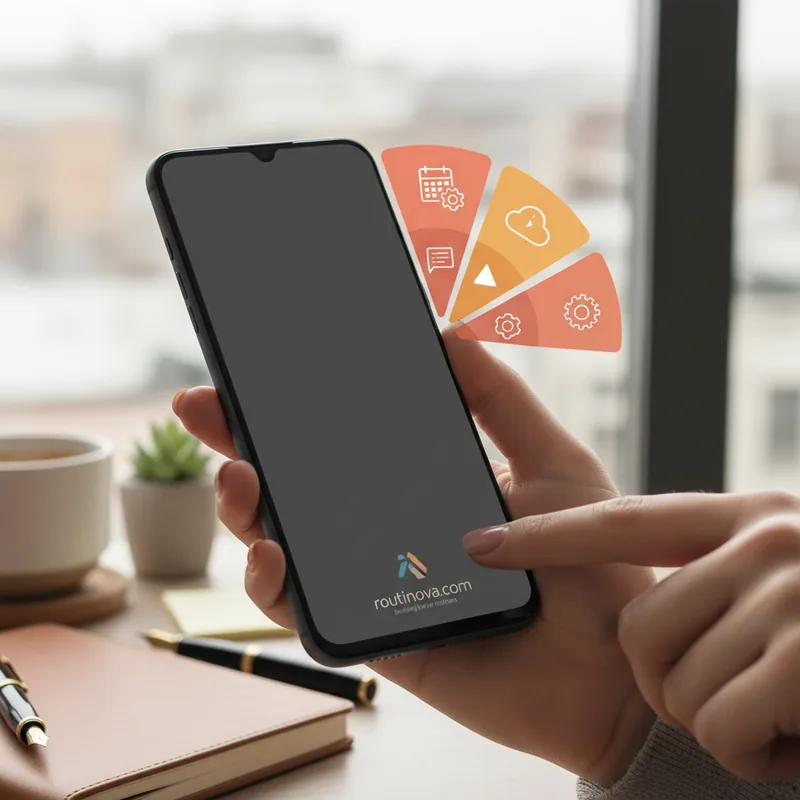
The Panels app by Fossor Coding offers a robust solution to bring Samsung Galaxy's Edge Panel functionality, and even surpass it, to any Android device, including your Pixel. This third-party application allows you to create a customizable sidebar for quick access to apps, system actions, and shortcuts, fundamentally changing how you interact with your phone. It's the answer to how to get Samsung's best organizational tool on your preferred device.
Panels: Beyond the Edge
In many ways, Panels elevates the concept pioneered by Samsung's Edge Panel. It offers unparalleled customization, letting you integrate custom icon packs for a personalized aesthetic and providing a quick search shortcut for instant app discovery. A standout feature is the ability to open floating widgets, transforming how you access information without leaving your current task.
The flexibility of Panels truly shines in its design. You can reposition the trigger point to the bottom edge of your phone, a game-changer for larger devices, making one-handed operation significantly easier. Furthermore, it supports multiple columns, allowing for an incredibly dense and organized layout of up to seven columns. While premium features are available, much of this core functionality, including the ability to how to get Samsung-like quick access, is included for free.
Setting Up Your Custom Panel
Getting started with Panels is straightforward. First, install the app from the Google Play Store and grant it permission to display over other apps. This crucial step ensures your custom launcher remains accessible regardless of which application you're currently using.
Next, tap on the View button within the app to begin customizing your panel. The free version provides ample space with limits of 3 columns and 9 rows, which most users will find more than sufficient. For those desiring even more space, a modest upgrade of $1.50 removes these constraints. From the Trigger section, you can precisely define the activation area. For users with larger phones, moving the trigger zone towards the bottom of the screen is highly recommended for ergonomic access.
Once configured, swipe in from your designated trigger area and hold for a second to reveal your customizable sidebar. Initially, it will populate with some default apps. To add your own selections, simply tap and hold on an empty space within the panel.
Populating Your Productivity Hub
Panels offers an extensive range of items you can add, transforming your sidebar into a truly personalized productivity hub. This is where you truly discover how to get Samsung's efficiency, and then some.
- Applications: Integrate your most frequently used apps for instant access. Imagine quickly launching your note-taking app like Google Keep or Notion to capture a fleeting thought (Tech Innovations Review, 2023).
- Shortcuts: Dive deeper into app functionality. Create a shortcut to directly add a new task in TickTick, or instantly message a specific contact on WhatsApp.
- App Pair: Launch two applications side-by-side with a single tap. This is incredibly useful for multitasking, especially with Android's improved split-screen capabilities. For example, opening Google Docs alongside your browser for research.
- Accessibility: Add system-level actions such as Home, Back, Notifications, or Screenshot, streamlining common interactions.
- System Preferences: Gain quick access to essential settings like media volume, cellular data, airplane mode, or Wi-Fi.
- Website: Pin any website as a quick shortcut. This is perfect for frequently checking a specific news feed or a project management dashboard.
- Floating Widget: A true hidden gem. Add widgets that open in a floating window, hovering over your current screen. Think of a weather widget for a quick forecast check or a stock ticker without interrupting your workflow (Global Remote Work Institute, 2024).
- Folder: For those with many shortcuts, folders help maintain organization and prevent clutter.
- Contact: Add frequently contacted individuals for quick calls, messages, or emails with a long press. For instance, a direct link to your child's school for emergencies.
- Quick Search: This panel enables a lightning-fast search across all installed applications, saving precious seconds.
By thoughtfully selecting options, you can tailor your sidebar to your exact needs. My personal setup prioritizes essential apps, shortcuts for common actions, and immediate access to key system functions, making how to get Samsung's quick-access feel like second nature.
Pro Tips for Seamless Interaction
While you can open apps by swiping, lifting your thumb, and selecting, there's an even more fluid method. Once you swipe in from the edge and the Panels sidebar appears, keep your thumb on the screen. You can then glide your thumb to highlight any app or shortcut--the selected icon will subtly enlarge--and simply release your thumb over your choice to launch it instantly.
Panels is a remarkably robust and versatile application. Once you've perfected your personalized setup, you'll find yourself launching apps, triggering shortcuts, or accessing widgets with just a single, intuitive swipe, no matter which app you're currently using. It truly transforms your Android experience, proving that you don't need a Samsung Galaxy to enjoy premium quick-access functionality.