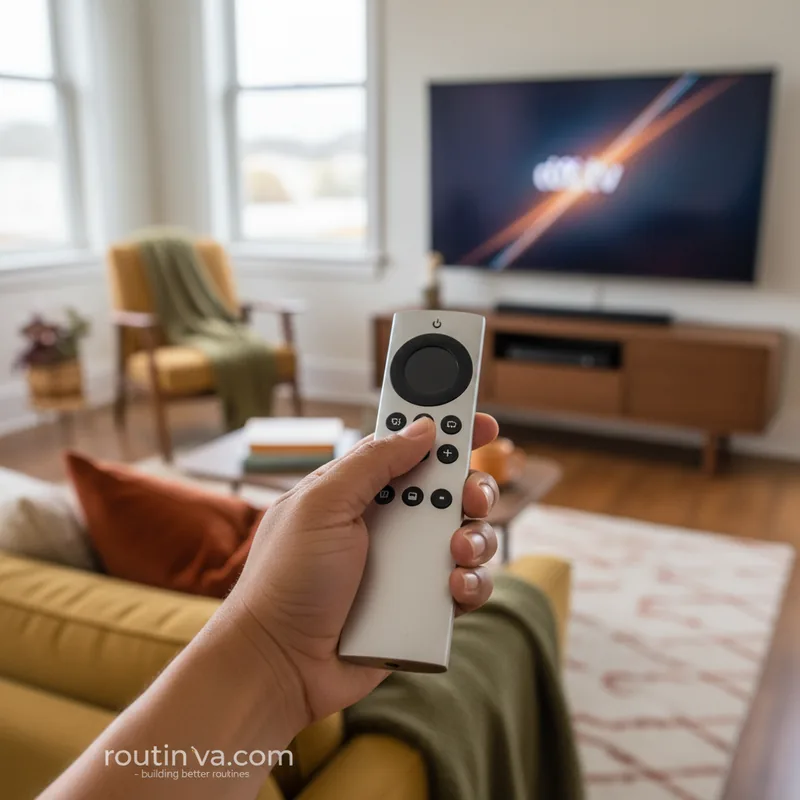
Ever feel like your smart devices are holding back more potential than they're unlocking? Your Apple TV, a hub for your favorite entertainment, is no exception. While it performs admirably out of the box, a few strategic adjustments can transform it from a simple streaming box into a truly optimized entertainment powerhouse. Are you ready to discover the hidden capabilities of your Apple TV? We've compiled 10 essential hacks every Apple TV owner should know to elevate your viewing and streamline your digital life.
Streamline Your Apple TV Experience
The default settings on your Apple TV are designed for broad appeal, but personalization is key to unlocking its full potential. From managing how your device wakes up to controlling how apps behave, these tweaks can significantly enhance your daily interaction with your device. Let's dive into how you can make your Apple TV work smarter, not just harder.
Optimize User Profiles and App Behavior
Managing profiles and how apps present content are crucial for a smooth experience. You can tailor these settings to reduce interruptions and cater to individual user needs, making your Apple TV more intuitive and less intrusive.
The first time you boot up after a tvOS update, you might be greeted by a full-screen profile selector. While useful for large households wanting distinct recommendations, it can be an unnecessary step for individuals or couples. To bypass this every time you wake your Apple TV, navigate to Settings > Profile and Accounts and disable the Choose Profile on Wake option. Your profiles remain accessible; you can still switch them using the TV button.
Autoplaying video previews in apps can be a constant source of distraction. Fortunately, you can disable this feature within the Apple TV app itself. Go to Settings > Accessibility > Motion > Auto-Play Video Previews > Off. For other popular streaming services like Netflix and Prime Video, you'll need to adjust settings via their respective websites. For Netflix, visit the website, go to your Profile > Manage Profiles > Playback Settings and disable Autoplay previews. For Prime Video, navigate to Account & Settings > Player and turn off Autoplay video and live events. Remember to log out and back in on your Apple TV for these changes to take effect.
Customize Remote and Device Interaction
The Apple TV remote is sleek but can be a learning curve for some. Adjusting its functionality and leveraging other devices can make interaction more intuitive and accessible for everyone in the household.
If the touchpad on the Apple TV remote proves challenging for you or guests, especially those accustomed to traditional D-pads, you can revert to a simpler control scheme. Head to Settings > Remote and Devices > Clickpad and select Click Only. This transforms the touchpad into a standard click button, preventing accidental swipes and simplifying navigation for users who prefer a more direct approach.
Losing the physical remote is a common frustration. Fortunately, your iPhone or Apple Watch can serve as a capable replacement. On your iPhone, access Control Center and tap the Apple TV remote icon. If it's not visible, add it through the Control Center customization options. Ensure your devices are on the same network, and you'll be able to control your Apple TV, often requiring an initial code for authentication. This is a lifesaver when the remote goes missing (Apple, 2024).
For a more immersive audio experience, consider using your HomePods or any AirPlay-enabled speakers as the default audio output. If you have a stereo pair of HomePods, they can seamlessly integrate. Set this up by going to Settings > Video and Audio > Audio Output and selecting your preferred speakers. For HomePods, ensure they are first set up as a stereo pair in the Home app on your iPhone.
Enhance Audio and App Management
Beyond basic navigation, optimizing audio and managing applications efficiently can further refine your Apple TV experience. These hacks focus on improving sound quality and troubleshooting common software glitches.
Want to enjoy your shows without disturbing others? Using AirPods with your Apple TV is straightforward. Pair them via Settings > Remotes and Devices > Bluetooth. Once paired, your Apple TV will often suggest connecting automatically when you put them on. You can also quickly switch audio output by pressing and holding the TV/Home button or using the Control Center. This offers a private listening experience without compromising sound quality (Apple, 2024).
Occasionally, apps on your Apple TV might freeze or misbehave, much like on any other smart device. To resolve these issues, you can force-quit an app. Double-press the TV button to bring up the app switcher, then swipe up on the app you wish to close. Relaunching the app can fix common problems like buffering or audio lag.
If you're using an older Apple TV model and notice sluggish animations, enabling Reduce Motion can help. Navigate to Settings > Accessibility > Motion and toggle this feature on. While it won't boost hardware performance, it can make the interface feel snappier by simplifying visual effects.
Manage Notifications and Calls
Distracting notifications can pull you out of your viewing experience. Taking control of what appears on your screen ensures uninterrupted entertainment.
Your TV screen shouldn't be a notification board. To disable alerts for incoming calls, Home app updates, or Fitness app notifications, go to Settings > Notifications and turn off alerts for specific apps or all of them. For a temporary solution, you can activate Do Not Disturb via Control Center by pressing the TV button once.
Furthermore, you can prevent phone calls from ringing on your Apple TV by adjusting settings on your iPhone. Go to Settings > Phone > Calls on Other Devices and disable the Apple TV option. This ensures your viewing sessions remain undisturbed by external communications (Apple, 2024).
By implementing these simple yet effective hacks, every Apple TV user can transform their device into a more personalized, efficient, and enjoyable entertainment hub. These adjustments ensure that your Apple TV truly serves your needs, enhancing your daily digital interactions.