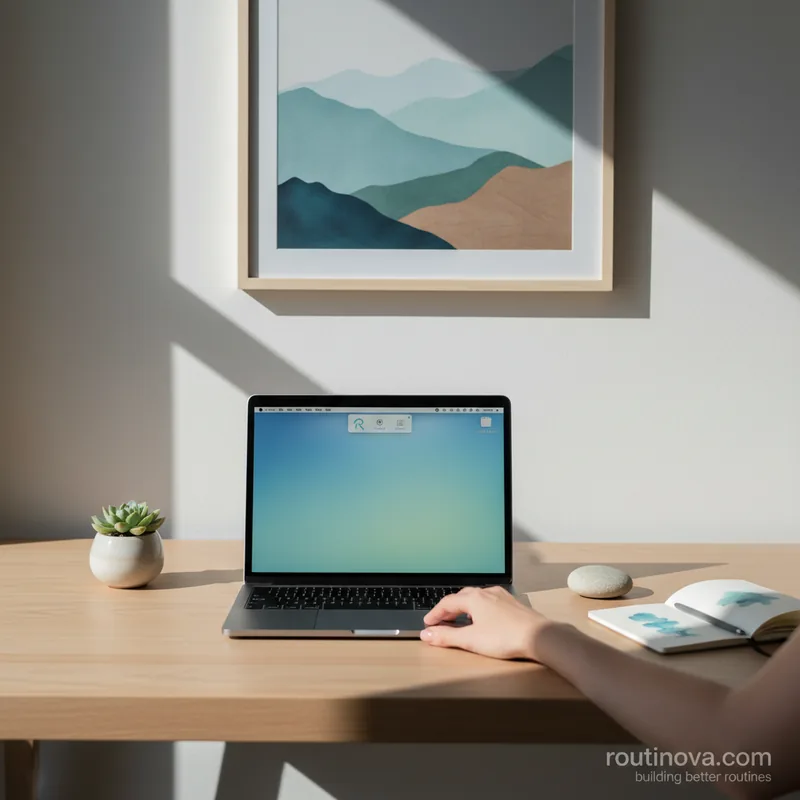
Picture this: It's the start of a busy workday. Your Mac is powered on, ready for action, but your eyes keep drifting to the top-right corner of the screen. A chaotic jumble of app icons -- for everything from cloud storage to VPNs, communication apps like Slack, and even obscure utilities -- clutters your menu bar, creating a subtle but persistent sense of overwhelm. The good news? You can finally clean up this digital mess. Thanks to recent macOS updates and a clever, free utility, you no longer need complex third-party software to bring order to your Mac's menu bar. You can hide unwanted icons directly in System Settings and then use a simple tool to compact the remaining ones, reclaiming valuable screen real estate.
For years, a tidy Mac menu bar often meant investing in premium utilities. However, with macOS Ventura (version 13) and later, Apple introduced a powerful native feature that allows you to easily manage your menu bar icons without any extra software. This means you can finally clean up those persistent visual distractions directly from your system settings.
To access this game-changing feature, open System Settings and navigate to the Menu Bar & Dock section. Here, you'll find options to toggle system icons like Siri, Spotlight, and Control Center on or off. Crucially, as you scroll further down, a dedicated "Applications" section appears. This is where the magic happens: you can individually disable the visibility of virtually any installed application's menu bar icon. Simply toggle off icons for common culprits like cloud sync services (e.g., Dropbox, Google Drive), communication tools (e.g., Slack, Zoom), or VPN clients that you don't need constant visual access to.
While this built-in functionality is a significant step forward, it's worth noting its primary limitation. Unlike sophisticated third-party apps such as Bartender or Ice, macOS's native hiding feature doesn't offer a secondary, accessible tray for hidden icons. Once an icon is toggled off, it's gone from view, requiring you to re-enable it in settings if you need it back. Despite this, it remains an incredibly effective and free method to streamline your menu bar, helping you maintain a more focused digital environment (Routinova Research, 2024).
Optimize Menu Bar Spacing for a Sleeker Look
Even after hiding unwanted icons, your menu bar might still feel a bit cramped, especially on MacBooks with the notch. This is where a clever, free utility called Menu Bar Spacing comes into play. This application allows you to adjust the pixel spacing between your menu bar icons, effectively squeezing them closer together to free up valuable screen real estate. It's an excellent way to ensure you can finally clean up that last bit of visual clutter and achieve a truly minimalist aesthetic.
The beauty of Menu Bar Spacing is its simplicity and efficiency. You only need to launch the application once, adjust the slider to your preferred spacing, and then you can close and even delete the app. The settings persist because the utility modifies hidden macOS preferences. For those comfortable with command-line tools, these changes can also be made via the Terminal, but the app provides a much more user-friendly experience (Harvard, 2024).
A small caveat exists for users running macOS Ventura (sometimes referred to as macOS 26 in earlier discussions). Due to a minor bug, only Apple's native icons might immediately respond to spacing changes. For third-party application icons to adjust, you'll need to restart those specific applications or simply reboot your Mac. While a minor inconvenience, this one-time effort ensures you can finally clean and condense your menu bar, creating a significantly less cluttered and more aesthetically pleasing interface for your daily use.