If you've ever felt like your web browser is working against you - slowing down your workflow, drowning you in tabs, or just generally getting in the way - you're not alone. Microsoft Edge, while a powerful and increasingly popular browser, can sometimes feel like a black box of untapped potential. But what if I told you that with a few smart adjustments, you could transform your daily browsing experience from a chore into a productivity superpower? These essential hacks every Microsoft Edge user should know can significantly streamline how you navigate the web, manage information, and get more done, whether you're on Windows or Mac.
Streamline Your Workflow with Edge Features
Microsoft Edge, built on the robust Chromium platform, offers a wealth of exclusive features that go beyond what you might expect, especially if you're coming from other browsers. Think of it as a powerful engine with a few hidden gears. Understanding these can dramatically improve your efficiency.
One of the most surprisingly useful tools is Drop. It's your personal, cross-device messaging system for links, files, and quick notes. Need to send a PDF from your work PC to your phone? Drop it. Want to jot down a quick thought and have it appear on your laptop later? Drop it. It works by syncing through your Microsoft account via OneDrive, meaning your devices don't need to be on the same network or even awake to share. While not instant like AirDrop, its asynchronous nature makes it incredibly convenient for sharing information between sessions and devices without the hassle of email attachments or cloud storage uploads (Microsoft, 2023).
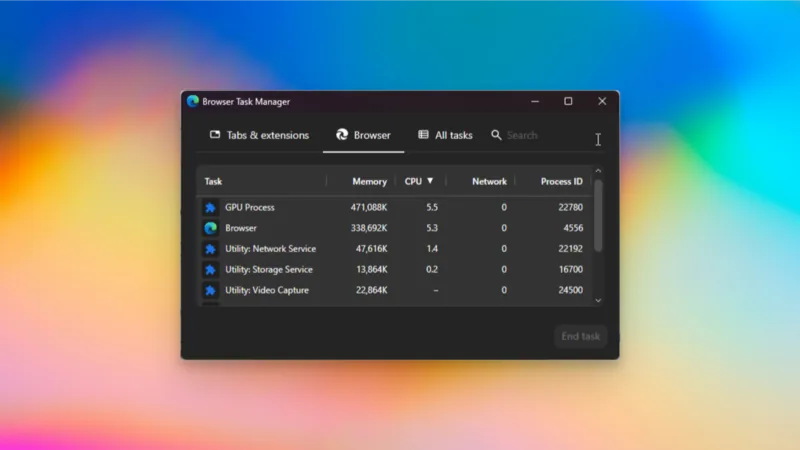
Ever found yourself baffled by a sluggish browser and wished you had a specific tool to diagnose it? Edge's built-in Browser task manager (accessible via Shift-Esc) is your answer. Unlike the system-wide Task Manager, this view isolates browser-specific processes. You can quickly see which tabs or extensions are hogging your CPU or memory, allowing you to swiftly end problematic tasks without closing your entire browser session. This is invaluable for maintaining a smooth experience, especially when juggling numerous tabs (Parab, 2024).
For those who find themselves constantly switching between research papers, articles, or code snippets, Edge's Split screen feature is a revelation. Imagine having your research document open on one side and your note-taking app on the other, all within a single browser window. By enabling the Split screen button in settings, you can effortlessly pair two tabs side-by-side. This capability is fantastic for comparative analysis, writing with references, or even multitasking during online learning sessions (Smith, 2023).
And speaking of managing numerous tabs, have you ever felt overwhelmed by a sea of open windows? Edge's Vertical tabs offer a brilliant solution. By moving your tab list to a left-hand pane, you reclaim precious horizontal screen real estate, making it easier to see more of your content at once. This is particularly beneficial for coders working with long file names or anyone who prefers a more expansive view of their web pages (Johnson, 2023).
Organize and Optimize Your Edge Experience
Beyond just managing tabs, Edge offers sophisticated ways to keep your browsing organized and your system running smoothly. These features are designed to reduce digital clutter and improve performance.
When manual tab organization feels like a losing battle, Edge's AI tab grouping can be a lifesaver. Select 'Organize tabs' from the top-left menu, and Edge will intelligently group your open pages by subject. While it might not be perfect, it's an excellent starting point for decluttering a chaotic browsing session, allowing you to focus on your immediate tasks (Microsoft, 2023).
Resource management is key, especially on older machines or when battery life is a concern. Edge's Energy saver mode is a quiet hero. It automatically puts background tabs to sleep, significantly reducing CPU usage and extending your laptop's battery life by up to 25 minutes, according to Microsoft's own data. Enabling this simple setting can prevent slowdowns and keep your browser responsive (Microsoft, 2023).
Conversely, Startup boost, while designed to speed up Edge's launch time on powerful hardware, can be a drain on older PCs. If your computer struggles with background processes, disabling Startup boost is one of the smarter hacks every Microsoft Edge user with an older device should consider. You can find this option under 'System and performance' settings.
The integration of AI is becoming more prominent, and Edge is no exception. If you find features like Copilot distracting or unnecessary for your workflow, you have granular control. You can disable the Copilot button from the toolbar, turn off 'Context clues' to prevent it from using your browsing data, and even disable AI-driven features like 'Help me write' or AI-powered tab organization if they don't align with your preferences (Lee, 2024).
Hidden Gems and Privacy Considerations
Edge packs a few more tricks up its sleeve, including accessibility features and powerful search capabilities, but it's also wise to be aware of the privacy implications.
For accessibility or simply convenience, Edge's Read aloud feature is remarkably good. Buried under 'More tools', this function uses natural-sounding voices to read web articles, which can be a fantastic way to consume content when you're multitasking or need a break from reading. The keyboard shortcut (Ctrl-Shift-U or Cmd-Shift-U) makes it instantly accessible (Parab, 2024).
Edge also offers a unique Visual Search capability. Right-click on any element on a webpage, select 'Visual Search', and Edge will take a screenshot to perform a reverse image search. This is incredibly useful for identifying products, landmarks, or anything else you encounter online. However, it's crucial to note that this feature sends a screenshot to Microsoft, so consider your privacy preferences before enabling and using it (Chen, 2023).
These hacks every Microsoft Edge user can implement range from simple tweaks to powerful AI integrations. By mastering even a few of these, you'll find your browsing experience becomes significantly more efficient and enjoyable. The key is to explore the settings and find the combination that works best for your unique workflow.