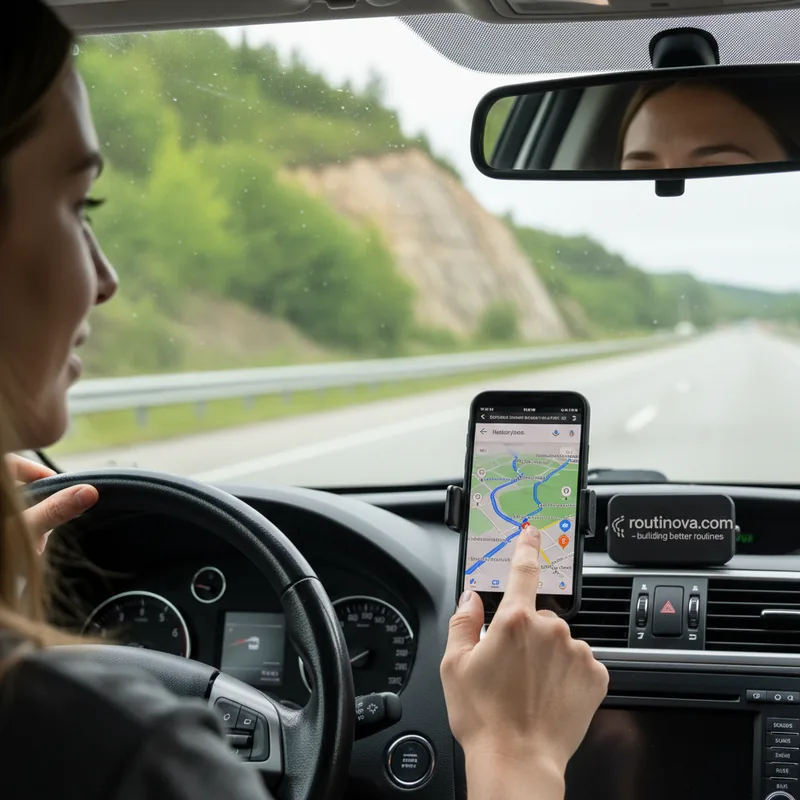
The difference between using Google Maps and truly mastering it often comes down to a handful of critical settings that remain hidden in plain sight. While millions rely on its default navigation, the app contains a sophisticated toolkit designed for everything from privacy protection to accessibility navigation.
Verify Route Options Before Departure
One of the most critical yet overlooked steps involves double-checking your route settings immediately before a journey. Google Maps occasionally auto-enables preferences you may not want, potentially leading to frustrating detours or unexpected tolls. Navigate to your profile icon, then Settings > Navigation > Route options to review four key toggles: Avoid tolls, Avoid highways, Avoid ferries, and Prefer fuel-efficient routes.
In familiar territory, these filters can save money and reduce traffic stress. However, when exploring unknown regions, disabling all options ensures the most direct and reliable path. This simple verification habit prevents the app from making assumptions that contradict your travel priorities.
Master Offline Mapping
Dead zones and roaming charges make offline maps indispensable for modern travel. Google Maps allows you to download specific regions for seamless navigation without cellular data. Search for your destination, swipe left on the control panel beneath the name, and select More > Download offline map.
For frequent travelers, enable Auto-update offline maps in the Offline settings menu. This ensures your downloaded maps always reflect the latest road changes and business openings. I recently relied on this feature during a hiking trip in the Scottish Highlands, where cellular signals vanished for hours, yet navigation remained flawless.
Select Your Vehicle Profile
Tailoring Google Maps to your specific vehicle unlocks smarter routing and better fuel efficiency. Access Your vehicles in settings to input your engine type. For electric vehicle owners, specifying your charging connector type is crucial--the app will then prioritize compatible charging stations along your route.
This level of customization prevents the common frustration of arriving at a charging station only to find it incompatible with your vehicle's port. It transforms Google Maps from a simple direction tool into a comprehensive travel assistant for modern transportation needs.
Integrate Audio Controls
Switching between navigation and music apps while driving creates dangerous distractions. Google Maps solves this by integrating directly with major streaming platforms. Once connected, you can control playback and browse playlists without leaving the navigation interface.
While voice assistants offer a hands-free alternative, they often struggle with complex commands or background noise. The in-app controls provide a reliable backup, allowing you to maintain focus on the road while managing your audio experience. This integration exemplifies how the best productivity tools anticipate and eliminate friction points.
Prioritize Accessibility Features
Google Maps contains powerful tools for users with mobility challenges. Enable Emphasize accessibility info under App & display settings to surface critical details like wheelchair-accessible entrances, seating availability, and reserved parking spots.
When generating walking directions, tap the options menu near the share icon and select Wheelchair accessible to filter out stairs in favor of routes with elevators. While these features represent significant progress, always verify critical accessibility details directly with venues, as data accuracy can vary.
Enhance Walking Navigation
For pedestrians, Google Maps offers specialized features that transform urban exploration. Smartwatch integration delivers haptic feedback for upcoming turns, eliminating the need to constantly check your phone screen--a lifesaver in adverse weather or crowded environments.
Live View represents the cutting edge of augmented reality navigation. By using your phone's camera to overlay directional arrows onto real-world imagery, it helps you pinpoint your location with pinpoint accuracy. This proves invaluable in complex indoor spaces like airports, malls, or transit hubs where GPS signals struggle.
Secure Your Profile Privacy
Your Google Maps profile publicly displays every review, photo, and contribution you've made. For those preferring discretion, Settings > Location & privacy > Profile > Restricted profile limits visibility to a select audience.
This setting is particularly valuable for professionals or public figures who need to maintain navigation utility without broadcasting their movements and preferences to the world. It represents a crucial middle ground between full anonymity and complete public sharing.
Manage Location Data Aggressively
Google Maps chronicles your movement history through Timeline data. While this can be useful--imagine contesting a parking ticket with precise location records--it also creates a detailed archive of your life.
Review your Location & privacy settings to control this data. Options include deleting all history, removing specific date ranges, or setting automatic deletion after three months. For maximum privacy, disable Timeline entirely. The American Civil Liberties Union has noted that such location databases can reveal sensitive patterns about your life, from medical visits to political activities.
Incognito Mode Strategies
Sometimes you need navigation without creating a permanent record. Incognito mode functions exactly as it does in web browsers--no search history, no location tracking, no data saved to your account.
Activate it by tapping your profile picture and selecting Turn on incognito mode. The icon change provides a clear visual confirmation. This is ideal for researching surprise trips, visiting sensitive locations, or simply maintaining digital hygiene without permanently disabling location services.
Organize With Lists
Transform scattered destinations into organized itineraries using Google Maps lists. When you find a restaurant, museum, or park worth visiting, tap Save and categorize it into custom lists like "Weekend Brunch Spots" or "Future Vacation Destinations."
These lists become collaborative tools when shared. Friends can add their recommendations, creating a shared travel plan. One traveler used this to map out a culinary tour of Tokyo, adding ramen shops, sushi bars, and street food stalls recommended by locals. The result was a perfectly optimized food itinerary that would have taken weeks to plan manually.