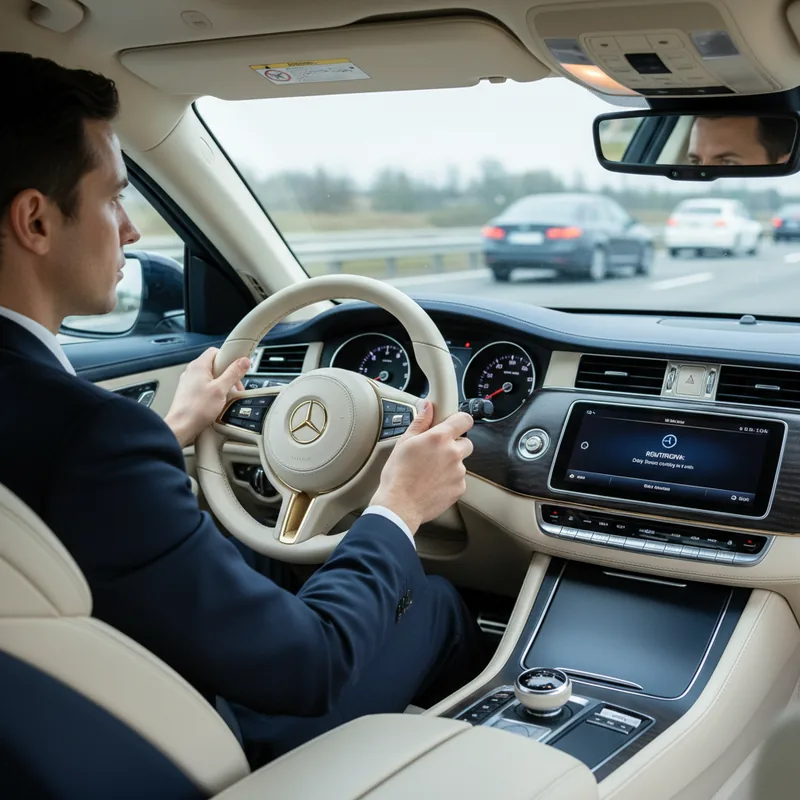
The afternoon sun glared, reflecting off the asphalt as Sarah navigated rush hour. Her phone, connected to Android Auto, pinged with an urgent-sounding group chat notification. Her eyes flickered to the car's display, just for a second, to see the first line: 'URGENT - meeting moved!' In that split second, the car ahead braked hard. Sarah slammed on her own brakes, heart leaping into her throat, narrowly avoiding a collision. The near-miss wasn't just a scare; it was a stark reminder that even a glance at a non-critical message could have devastating consequences. The road demands undivided attention, but how do you stay connected without risking everything? This guide reveals all the ways you can fine-tune your Android Auto notifications, ensuring you receive critical alerts without compromising your focus on the road (NHTSA, 2023).
The Driving Dilemma: Focus vs. Connection
For many Android Auto users, the challenge of managing phone notifications behind the wheel feels like a constant tug-of-war. While Google has recently streamlined some settings, the quest for the perfect balance between staying connected and avoiding perilous distractions remains paramount. You want to know if your child's school is calling, but you certainly don't need a constant stream of social media updates pulling your gaze from the road. The key lies in strategic customization, and understanding all the ways you can adjust these settings is crucial for both your safety and peace of mind.
Think about it: a seemingly harmless notification can momentarily divert your attention, increasing reaction time and the risk of an accident (Driving Safety Institute, 2023). This is why Android Auto's notification controls are more than just convenience features; they're essential safety tools. The goal isn't to silence your phone entirely, but to create a filtered experience where only genuinely important information breaks through, and even then, in the least intrusive manner possible.
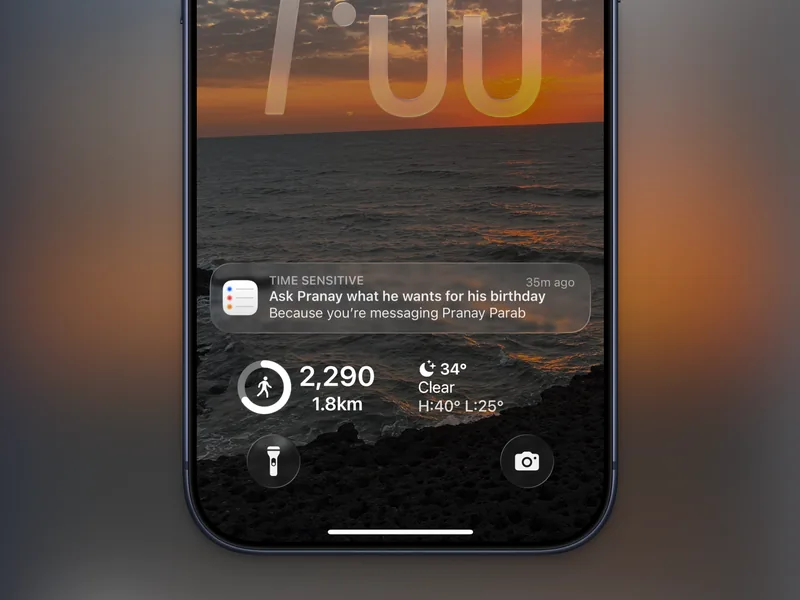
You can mute some or all of your phone's notifications when driving.
Tailoring Your Android Auto Experience
The foundation of a distraction-free drive often starts with your phone's built-in 'Do Not Disturb' (DND) modes, specifically designed for driving. Let's explore all the ways you can configure your phone's driving mode, whether you're a Pixel or a Samsung Galaxy user.
Pixel's Intelligent Driving Mode
If you're wielding a Pixel device, your DND settings are nestled within 'Modes' in your phone's main Settings. Tap Modes, then select Driving. Here, activating the While driving toggle switch ensures this mode springs to life automatically when your car is in motion. But here's where it gets smarter: tap the While driving text (not just the toggle) to fine-tune how your phone detects you're driving. Google recently enhanced this, allowing you to choose Use Bluetooth (activating when connected to your car's dashboard) or Use motion and Bluetooth (which adds accelerometer data for even greater accuracy). This dual detection method significantly improves reliability, preventing false activations when you're just a passenger (Google Blog, 2024).
Galaxy's Dedicated Driving Routines
Samsung Galaxy users have a slightly different, yet equally powerful, approach. Navigate to Modes and Routines from your Settings, then access the Driving mode. What's particularly useful here is the ability to set a direct connection to an Android Auto dashboard as the specific trigger. This means the mode won't just activate with any Bluetooth device, offering a more precise, in-car-only experience. Both Pixel and Galaxy phones also allow you to create exceptions within these driving modes, letting calls or messages from specific contacts (like your partner or child's school) or critical apps bypass the silence. Remember, though, to be judicious; the goal is focus, not a stream of pop-ups.
Beyond DND: Granular Notification Control
While DND modes are powerful, Android Auto offers even more specific controls to refine your in-car notification experience. These are just some of all the ways you can personalize your alerts directly within the Android Auto interface.
Visual and Auditory Customization
From your Pixel's Driving mode screen, tapping Display settings allows you to dictate whether your phone screen lights up with notifications. You can also dim your wallpaper or switch to a grayscale look, reducing visual stimulation. Similarly, on a Galaxy phone, editing your Driving mode lets you customize the Lock screen or Home screen wallpaper and color palette specifically for driving. The underlying principle is simple: make your phone less visually demanding, so your eyes stay on the road.
But the customization doesn't stop at your phone's display. Dive into the main Android Auto settings: from your Android Settings, go to Connected devices > Connection preferences > Android Auto (for Pixel) or Connected devices > Android Auto (for Galaxy). Under the Messaging header, you'll find crucial options. You can turn off alerts for group conversations entirely, or even disable notifications from specific messaging apps. There's also a toggle to show or hide the first line of an incoming message. For maximum safety, disabling this is highly recommended; a quick glance at a message preview, even if you don't intend to respond, can be a dangerous distraction.
You can control how messages appear on your dashboard.
Finally, for ultimate hands-free convenience, Android Auto offers the option to have incoming messages read out loud to you. This auditory alert can be a game-changer, allowing you to stay informed without ever needing to glance at your dashboard or pick up your phone. Imagine receiving a critical alert from your navigation app about an unexpected road closure, read clearly and concisely, rather than a visual pop-up that demands your attention away from traffic.
Mastering all the ways you can control notifications within Android Auto is about empowering you to drive smarter, not just safer. It's about creating an environment where essential information is accessible without becoming a hazard. Take the time to explore these settings, reduce unnecessary distractions, and transform your driving experience into one of focused calm and confident connection.