The faint ping of a notification. You glance at your iPhone, expecting a text, but it’s a reminder: “Call Mom back about the weekend plans.” You sigh, realizing you almost forgot. For years, the Apple Reminders app has lived in the shadow of more complex to-do list managers, often dismissed as a basic checklist. But what if I told you it’s a productivity powerhouse, capable of transforming how you manage your day, your work, and even your errands? Tucked away within its clean interface are features that, when wielded correctly, offer sophisticated context and timing, turning a simple app into your personal command center. Ready to unlock these secrets? Here are 10 productivity hacks every Apple user should know to truly master their tasks.
Never Forget a Conversation with "When Messaging"
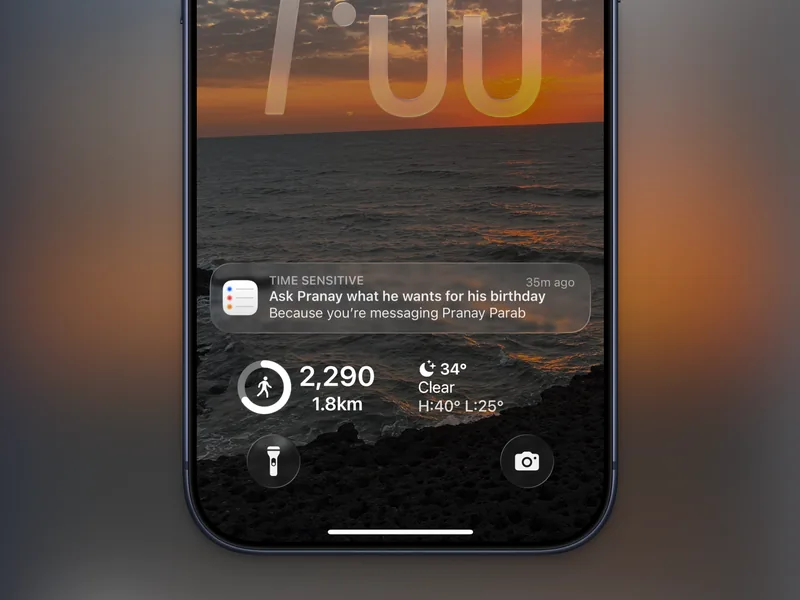
We've all been there: you have a question for a colleague or a quick request for a friend, but the perfect moment to ask slips away. You intend to follow up, but life intervenes, and suddenly, it’s days later. Apple Reminders has an elegant solution for this common communication pitfall. By linking a task to a specific contact, you can trigger a reminder the very next time you text them. It’s a surprisingly simple way to ensure timely follow-ups without cluttering your main task list. To set this up, create your reminder, tap the info (i) icon to access detailed settings, scroll down, and enable the "When Messaging" toggle. Then, select the contact. The next time you’re in an iMessage conversation with them, a notification from Reminders will pop up, prompting you to ask that question you almost forgot.
Example: You need to ask your sister about her availability for a birthday dinner. Set a reminder: "Ask Sarah about birthday dinner availability," link it to her contact, and you'll get a nudge next time you message her, ensuring the question gets asked at the opportune moment.
Visualize Complex Projects with Kanban View
For projects that involve multiple stages or a clear workflow, a simple linear to-do list can feel restrictive. Enter Kanban view. This feature transforms your Reminders list into a dynamic, column-based interface, where each section you create becomes a distinct column. It's particularly effective on a Mac but perfectly navigable on an iPhone, allowing you to visualize your progress at a glance. This is ideal for anyone managing projects with distinct phases, like content creation, event planning, or even personal goal tracking. You can visually drag tasks between columns as they move through your workflow.
To enable this, first create sections for your project (e.g., "Pitches," "Drafting," "Editing," "Published" for an article workflow). Tap the Menu button, select Add Section, and name it. Then, from the Menu again, choose View as Columns. Experimenting with this view can dramatically improve how you track complex tasks and understand project momentum. It’s one of the most powerful, yet overlooked, productivity hacks every Apple user can implement.
Example: Planning a wedding? Create columns for "Venue Research," "Vendor Booking," "Guest List," "Invitations Sent," and "Final Details." As you book vendors or send invites, simply drag the task to the appropriate column.
Integrate Tasks with Your Calendar View
If you plan your days visually, seeing your appointments and tasks side-by-side is crucial. Reminders syncs seamlessly with your Calendar app, displaying all tasks with a due date and time directly on your calendar. This means your to-dos appear alongside your meetings and events, offering a comprehensive overview of your schedule. You can even drag and drop tasks within the Calendar app to reschedule them. This integration turns your Calendar into a dynamic planner, blending your commitments and your to-dos into one cohesive view.
To ensure this works, simply set up your Calendar app as usual. Any reminder with a specified due date and time will automatically appear. Need to add a task directly from your calendar? Tap the Plus button and switch to the Reminder tab.
Example: You have a doctor's appointment at 2 PM and a reminder to "Prepare presentation slides" due by 5 PM. Both will appear on your calendar, helping you allocate time effectively.
Streamline Shopping with Auto-Categorized Groceries
Wandering aimlessly through the grocery store, backtracking for forgotten items, is a time-sink we can all do without. Reminders offers a built-in solution with its "Groceries" list type, available in iOS 17 and later. When you create a new list and select "Groceries" as the type, the app automatically categorizes items as you type them. Sourdough bread appears under "Breads," apples under "Produce," and chicken thighs under "Meat." This intelligent organization means your list is pre-sorted by store aisle, saving you precious time and mental energy during your shopping trips.
If you don't see the suggestion, simply tap the Plus button to create a new list and choose "Groceries" from the List Type options. It's a small feature that makes a significant difference to your weekly routine.
Never Miss Critical Deadlines with Urgent Alarms
For those truly unmissable tasks, standard notifications can sometimes be too subtle, especially if your phone is on silent or out of reach. iPhones running iOS 26.2 and higher introduce an "Urgent" setting for reminders. This elevates a reminder to function like a traditional alarm, complete with a full-screen alert and snooze option. It's designed for those critical alerts you absolutely cannot afford to miss. Once enabled, the reminder will break through Do Not Disturb modes, ensuring you’re immediately aware of its due time.
To activate it, go to a reminder's detailed view, set a due date and time, and toggle on "Urgent." You'll likely need to grant permission for it to integrate with your system alarms. This is one of the most impactful productivity hacks every Apple user can leverage for high-stakes tasks.
Example: A reminder to "Submit final project report by 5 PM" can be set as Urgent, ensuring you don't accidentally overlook it amidst a busy workday.
Collaborate Effectively with Shared Lists
Managing tasks with family, roommates, or colleagues just got easier. Reminders allows you to create shared lists, making collaboration simple and efficient. While it may not have the extensive features of dedicated project management tools, it's more than capable for everyday shared responsibilities. Simply tap the Share button on any list and invite others via Messages or Mail. Once they accept, you can assign tasks directly within the list by typing @ followed by their name.
This feature is fantastic for household chores, grocery shopping coordination, or team project assignments. It keeps everyone on the same page without needing a separate communication channel just for task delegation.
Example: A shared grocery list where one person adds "Milk" and assigns it to their partner using "@partner's name," ensuring it gets picked up.
Save Time with Reusable Templates
Do you find yourself creating the same list structure repeatedly? Perhaps a weekly meal plan, a packing list for business trips, or a onboarding checklist for new hires? Reminders lets you turn any existing list into a template. This means you can instantly populate a new list with all the same sections, tasks, and subtasks, saving you significant setup time. It’s a powerful way to standardize recurring processes and ensure consistency.
To create a template, open the list you want to reuse, tap Menu, and select Save as Template. Give it a descriptive name. Later, to create a new list from it, go to Menu, choose Templates, and select the template you need.
Example: A template for "New Client Onboarding" could include sections for "Initial Call," "Contract Sent," "Welcome Packet," and "First Project Kick-off," all pre-populated with standard tasks.
Break Down Complexity with Subtasks
Large, daunting tasks often lead to procrastination. Reminders' subtask feature allows you to decompose complex projects into manageable steps, creating a clear hierarchy without needing a dedicated project management app. Each subtask can have its own details, including due dates, notes, and even assignees. This visual breakdown makes large projects feel less overwhelming and easier to tackle systematically.
To create a subtask, type your main task, press Enter, and then type your first subtask. It will initially appear as a regular task. To convert it, simply swipe right on the subtask and tap Indent. It will then nest neatly under the task above it. You can expand or collapse the main task to hide or reveal its subtasks, keeping your main list clean.
Example: A main task "Launch New Website Feature" could have subtasks like "Design Mockups," "Develop Frontend," "Backend Integration," "Testing," and "Deployment." Each can be managed independently.
Organize Effortlessly with Tags
Tags offer a flexible way to categorize and filter your reminders without rigidly structuring your lists. By simply typing a hashtag (#) followed by a keyword (e.g., #work, #urgent, #errands), you can tag any task. Later, you can tap on a tag from the Reminders home screen to view all tasks associated with it, regardless of which list they belong to. This is incredibly useful for quickly pulling up all related items for a specific context or priority level.
This system allows for cross-list organization, making it easier to manage different aspects of your life. For instance, you can see all your #home tasks together, even if they are scattered across your "Groceries," "Chores," and "Personal" lists.
Example: Tagging tasks like "Prepare Q3 Report" with #work and "Schedule Dentist Appointment" with #health allows you to quickly view all work-related items or all health-related items.
Create Powerful Custom Views with Smart Lists
Building on the power of tags and subtasks, Smart Lists are where Reminders truly shines for advanced organization. These are essentially saved, dynamic filters that automatically compile specific sets of tasks based on criteria you define. Imagine a Smart List that shows all your #work tasks, due in the next 7 days, marked as high priority, and located at your office. It’s like having a custom dashboard for your most important active tasks.
To create one, navigate to the Reminders home page, tap the Plus button to add a new list, and select Smart List as the List Type. Then, under Manage Smart List, you can add filters for tags, due dates, locations, priorities, and even tasks from other lists. These Smart Lists appear on your home screen, and you can pin the most frequently used ones to the top for immediate access. Mastering these productivity hacks every Apple user can implement will drastically cut down on searching and sorting.
Example: A "Weekend Errands" Smart List could include all tasks tagged #errands, due on Saturday or Sunday, and not yet completed.