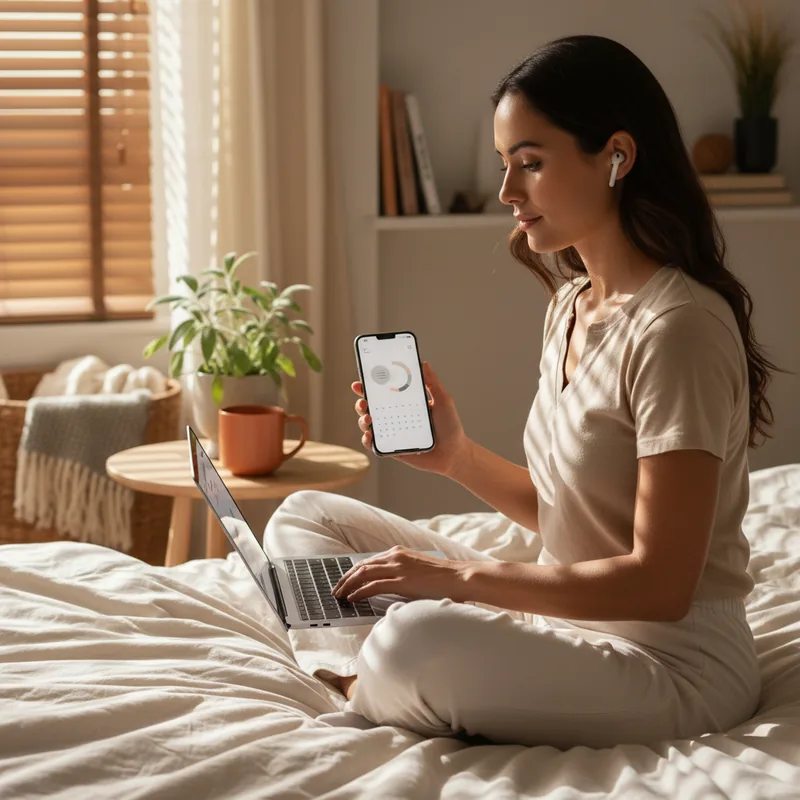
In an age where technology often overcomplicates, AirPods initially present themselves with deceptive simplicity. You pop them in, they connect, and music plays. Yet, beneath this seamless veneer lies a sophisticated suite of functionalities, many of which remain undiscovered by even seasoned users. For any dedicated AirPods owner, unlocking these advanced capabilities can transform a simple listening device into an indispensable tool for productivity, communication, and even accessibility. This article dives deep into the essential hacks every AirPods user should know, revealing how to harness their full potential, whether you own the standard models, the advanced Pros, or the immersive Max.
Mastering Your Audio Environment
AirPods are more than just headphones; they are gateways to controlling your personal soundscape. From managing external noise to preserving battery life, these features are among the most valuable AirPods user hacks for daily comfort and efficiency.
Reclaim "Off" Mode for Focus and Battery
While Noise Cancellation and Transparency modes offer distinct advantages, the often-overlooked "Off" mode can be a game-changer. This setting deactivates active noise processing, providing a subtle degree of passive noise blockage while significantly extending your AirPods' battery life. It's ideal for environments where full noise cancellation isn't necessary, but you still desire a reprieve from ambient distractions, like a quiet office or a library.
By default, Apple often omits "Off" mode from the quick-switch options accessed via the stem (or the noise control button on AirPods Max). To include it, navigate to your AirPods' settings on your connected device. Scroll to "Press and Hold AirPods," then select either "Left" or "Right." Here, ensure "Off" is selected to integrate it into your noise control rotation, making it readily accessible when you need it.
Customize Adaptive Audio Levels
Adaptive Audio, available on AirPods Pro 2, AirPods Pro 3, and AirPods 4 with Active Noise Cancellation, is a marvel of intelligent sound management. It dynamically adjusts external sounds, either amplifying or dampening them based on your surroundings, ensuring you remain aware of your environment without sacrificing audio quality. However, Apple's default levels may not suit everyone's preferences.
Fortunately, you can fine-tune this feature. Within your AirPods settings, locate the "Adaptive Audio" section. A slider allows you to adjust the sensitivity: moving it left blocks more sound, while sliding it right lets in more ambient noise. Experiment with these settings in various environments--from a bustling coffee shop to a quiet park--to find the perfect balance that enhances your experience (Harvard, 2024).
Silence Unwanted Personalized Volume
The "Personalized Volume" feature, designed to intelligently adapt your audio volume to your environment, can sometimes feel more intrusive than helpful. It aims to prevent your music from being too quiet in noisy places or too loud when things suddenly quiet down. In practice, this automatic adjustment can lead to an unpredictable listening experience, with music levels fluctuating without your direct input.
If you find this feature disruptive, disabling it is straightforward. Head to your AirPods settings, scroll down to "Audio," and toggle off "Personalized Volume." Regaining manual control over your audio levels ensures a consistent and predictable listening experience, allowing you to adjust volume precisely as you prefer, rather than relying on an algorithmic guess.
Seamless Communication and Accessibility
AirPods excel not just in audio playback but also as powerful tools for communication and accessibility. These advanced **hacks every AirPods user** should explore extend their utility far beyond simple listening, from hands-free call management to groundbreaking translation capabilities.
Mastering Stem Controls for Calls
Your AirPods are sophisticated communication devices. When a call comes in, there's no need to reach for your iPhone; a single press on an AirPod stem answers it. Beyond this, the stem controls offer further customization for in-call management. By default, a single press mutes or unmutes your microphone, while a double press ends the call.
For those who prefer a different configuration, these controls can be swapped. Access your AirPods settings and navigate to "Call Controls." Here, you can reassign these actions to better suit your workflow, ensuring your AirPods respond precisely how you need them to during important conversations.
Enable Head Gestures for Hands-Free Control
Imagine accepting a call or dismissing a notification without lifting a finger. AirPods 4, AirPods Pro 2, and AirPods Pro 3 introduce Head Gestures, allowing you to nod your head to accept or shake it to decline calls, or to reply to/dismiss texts. This feature is particularly useful when your hands are occupied, such as while cooking, driving, or working out.
To enable this, first ensure "Announce Calls" and "Announce Notifications" are active in your iPhone's "Siri" or "Apple Intelligence & Siri" settings. Then, in your AirPods settings, scroll to "Head Gestures" and enable the toggle. You can then assign specific head movements to "Accept, Reply" and "Decline, Dismiss" actions, offering truly hands-free interaction (Mayo Clinic, 2023).
Set Up Live Translation on the Fly
The ability of AirPods to facilitate real-time translation is a testament to modern technological prowess. With AirPods Pro 2, AirPods Pro 3, or AirPods 4 with Active Noise Cancellation, you possess the power to engage in conversations with individuals speaking different languages, breaking down communication barriers instantly.
Before using this feature, you must download the target language to your iPhone. In your AirPods' settings, find "Translation (Beta)" and select "Languages." Here, you can download any of the available languages, including Chinese (Mandarin, Simplified/Traditional), English (UK/US), French, German, Italian, Japanese, Korean, Portuguese (Brazil), and Spanish (Spain).
Once downloaded, a simultaneous press on both AirPods stems can launch Live Translate. Alternatively, open the Translate app, select "Live," and choose the languages for both speakers. You'll hear the translation in your AirPods, with corresponding text displayed on your iPhone, making cross-cultural communication seamless.
Transform Your AirPods into Hearing Aids
For over a year, certain AirPods models have been recognized by the FDA as clinical-grade hearing aids. This means your existing AirPods Pro 2 or AirPods Pro 3 can serve as a valid, often more affordable alternative to dedicated hearing aids, a significant step forward in accessible technology.
To unlock this capability, you'll need to either complete a hearing test directly through your iPhone or upload an audiogram from a professional audiologist. These options are conveniently located within your AirPods' settings under "Hearing Assistance." This feature truly broadens the utility of your AirPods, providing essential support for individuals with hearing needs.
Beyond Listening: Utility and Connectivity
AirPods are not just for listening; they offer a range of utilities that extend their functionality across various devices and scenarios. These practical **AirPods user hacks** enhance their versatility, making them an indispensable part of your tech ecosystem.
Locate Lost AirPods with Find My
It's an inevitable truth: small, portable tech like AirPods will eventually go missing. Whether they slip out of a pocket, vanish under a couch cushion, or get misplaced in a gym bag, Apple's Find My network offers robust tools to retrieve them much faster than a frantic search. This is one of the most critical hacks every AirPods user needs to master.
The Find My app provides several methods for recovery. First, the "Devices" tab displays your AirPods' last-known location on a map. If you left them at a friend's house or a specific café, you'll know exactly where to start looking. If you're already in the indicated location, two additional features become invaluable.
The "Find" feature offers step-by-step directions to your AirPods. For AirPods Pro 2 or 3, you'll even see an arrow guiding you precisely. If they're still elusive, tap "Play Sound" to emit an audible chime from any loose AirPod. For AirPods 4 with Active Noise Cancellation, AirPods Pro 2, or AirPods Pro 3, this sound can even be played from the charging case itself, making them easier to pinpoint.
Pair Your AirPods with Non-Apple Devices
While AirPods seamlessly integrate with Apple's ecosystem, their utility isn't confined solely to Cupertino's devices. They can connect to any Bluetooth-enabled gadget, significantly expanding their flexibility. This means you can use your AirPods with a PlayStation 5 (as Bluetooth audio isn't natively supported by the console, you can connect them to the TV itself), a smart TV for late-night viewing without disturbing others, or even a Nintendo Switch for immersive gaming audio.
The key to connecting to non-Apple devices lies in activating "pairing mode." This bypasses Apple's proprietary pairing system, opening your AirPods to any available Bluetooth source. Here's how to do it:
AirPods 1, 2, or 3, or AirPods Pro 1 or 2: Place your AirPods in their case, open the lid, then press and hold the button on the back for approximately five seconds, or until the status light begins flashing white.
AirPods 4 or AirPods Pro 3: Place your AirPods in their case, hold the case next to the Bluetooth device, then double-tap the front of the case. The light should start flashing white.
AirPods Max: Press and hold the noise control button (the longer button) for about five seconds, until the light starts flashing white.
Utilize Your AirPods as a Camera Remote
Long gone are the days of needing a dedicated camera remote. Your AirPods can transform into a convenient remote for your iPhone's camera, a surprisingly versatile feature for group photos, steady video recording, or even capturing time-lapse videos of a sunset from a tripod without touching your phone.
If you own AirPods 4, AirPods Pro 2, or AirPods Pro 3, setting this up is simple. Go to your AirPods' settings, scroll down, and tap "Camera Remote." You can choose between "Press Once" for a quick press to act as a shutter button, or "Press and Hold" for a long-press to achieve the same. Be aware that this customization affects other stem functionalities: selecting "Press Once" will disable media playback control via the stem, while "Press and Hold" will prevent the stem from activating Siri.
By delving into these advanced settings and features, you unlock the true power of your AirPods. They are not merely earbuds but sophisticated personal tech companions, capable of enhancing everything from your daily commute to global communication. Mastering these essential **hacks every AirPods user** needs ensures you're getting the most out of your investment, making your digital life more connected and convenient.