If you think your Amazon Fire TV or Fire TV Stick is just a simple streaming device, you've been missing out. Most people treat their Fire device as little more than a gateway to Netflix or Prime Video, unaware of the powerful, often hidden, capabilities lying just beneath the surface. It's not your fault--Amazon doesn't exactly advertise these advanced features front and center. But what if you could transform your Fire TV into a control center for your smart home, a personal computer, or even a silent entertainment hub? You absolutely can. We're about to unveil the essential hacks every Amazon Fire user needs to know, turning your everyday streamer into a true lifestyle powerhouse.
Before we dive in, a quick clarification: while many of these tips apply broadly, some are specific to either a Fire TV (the actual television) or a Fire TV Stick (the dongle). But don't worry, if you don't own a Fire TV, a simple Fire TV Stick can bridge that gap for around $30, instantly unlocking a world of potential (Amazon, 2024). Having used Fire OS for years, I can tell you it's packed with unique tricks that elevate the entire experience.
Mastering Your Fire TV's Core Functions
The remote in your hand holds more power than you realize. Beyond the basic clicks, there are clever shortcuts and settings that can significantly enhance your daily interaction with your Fire TV. These aren't just minor tweaks; they're fundamental improvements to how you navigate and control your entertainment.
Get More Detailed Menu Information
Ever wish you knew more about a show before clicking into its full page? There's a hidden trick for that. Pressing and holding the Fast Forward and Rewind buttons simultaneously for two seconds activates the Text Banner. A discreet white box will appear at the bottom of your screen, offering rich details about whatever you've highlighted in the menu. Think IMDb ratings, movie lengths, release years, content ratings, and concise summaries. You can even use the Fast Forward arrow to cycle through additional information within the banner. For an even richer menu experience, a quick press of the Menu button (the one with three horizontal lines) often reveals options to add items to your watchlist or see available streaming platforms.
Restart Your Fire Device in Seconds
Like any mini-computer, your Fire TV or Stick can sometimes get sluggish or glitchy. Instead of fumbling through menus or yanking the power cord, there's a lightning-fast restart method. Simply hold the Circle button (the select button in the middle of the directional pad) and the Play/Pause button together for about five seconds. Your device will instantly reboot, often resolving minor performance issues without the hassle (TechInsights, 2023).
Ditch the Remote: Your Phone is Better
Lost your remote again? Or perhaps you bought a used TV without one? Don't panic. The official Amazon Fire TV app, available for free on your smartphone, is a superior replacement. It turns your phone into a fully functional remote, often with enhanced features. Just ensure both your phone and Fire TV are on the same Wi-Fi network for seamless setup. One of the biggest game-changers? Typing. Instead of tediously selecting each letter with the remote, you can use your phone's keyboard to search for shows, enter passwords for new apps, or browse the web with ease. It's one of the most practical hacks every Amazon Fire user should embrace for daily convenience.
Hands-Free Control with Alexa
We've all been there: hands full with snacks, or the remote has vanished into the couch cushions just as the next episode's spoiler-filled preview begins. If you have an Alexa-enabled speaker nearby, you're in luck. Simply use voice commands to control your Fire TV. "Alexa, pause the TV," "Alexa, play The Marvelous Mrs. Maisel," or "Alexa, turn up the volume" are just a few commands that can save the day. It's a seamless integration that makes your entertainment experience truly hands-free.
Private Listening with Bluetooth Headphones
The Bluetooth functionality on your Fire TV is incredibly versatile, yet often overlooked. While it's great for connecting wireless keyboards for easier typing or gamepads for a more immersive gaming experience, its most personally useful application is connecting Bluetooth headphones. Imagine watching a late-night movie or playing a game without disturbing anyone else in the house. It's a simple setup: navigate to Settings > Controllers & Bluetooth Devices > Other Bluetooth Devices > Add. Your Fire TV will then scan for any devices in pairing mode, allowing you to enjoy your content in peace. This is particularly useful for parents who want to catch up on shows after the kids are asleep, or for roommates sharing a living space.
Expanding Your Fire TV's Capabilities
Beyond its primary role as a media streamer, your Amazon Fire TV is a surprisingly adaptable device. These next hacks push the boundaries of what you thought your TV could do, transforming it into a more integral part of your digital life and smart home ecosystem.
Mirror Your iPhone Screen
While Android phones can natively cast to Fire TVs, iPhone users often feel left out. But just because it's not built-in doesn't mean it's impossible. You'll need a third-party app to bridge the gap. While some free options exist (like AirScreen or LetsView), they often come with ads or time restrictions. For a smoother experience, consider a paid app like Screen Mirroring for Fire TV. Once installed, simply hold the Home button on your remote for five seconds, select the Mirroring option, and then open the mirroring app on your Fire TV. Ensure both devices are on the same network, and follow the on-screen instructions to project your iPhone's display onto your big screen. This is perfect for sharing photos, videos, or even presentations with a group.
Stream Anything Virtually for Free with Kodi
Kodi is a powerful, free, and open-source media center that allows you to organize and stream your entire media collection--from movies and TV shows to music and photos--to any local device, including your Fire TV Stick. The initial setup can be a bit involved, but the payoff is immense. It essentially turns your Fire TV into a highly customizable media hub. While Plex and Jellyfin offer simpler installations directly from the Amazon app store, Kodi provides unparalleled flexibility for those willing to put in a little effort. Exploring these options can truly redefine what you expect from your streaming device.
Browse the Web on Your TV
Who needs a separate computer when your Fire TV can handle web browsing? The Amazon Silk app, available on your Fire TV or Stick, turns your television into a giant web browser. Check emails, scroll through social media, or read articles--anything you'd do on a standard browser. If the thought of typing with a remote makes you cringe, remember the Amazon Fire TV app on your phone, or consider a cheap Bluetooth keyboard for a more traditional input experience. With a bit of customization, you can even create homepage shortcuts for your favorite websites, making them feel like native apps. This is one of the more surprising hacks every Amazon Fire owner can leverage for productivity.
Use Your Computer as a Fire TV Display
Sometimes you want to take your Fire TV experience on the go, or perhaps you don't have a TV readily available. Playing your Fire TV content on your computer (Mac or PC) is a surprisingly useful workaround, especially if you've already set up Kodi. Software like OBS Studio, an open-source streaming tool, can facilitate this. Essentially, you're creating another display for your Fire TV, giving you flexibility to watch your favorite shows and movies wherever you have your computer--a great option for travel or multi-tasking.
See Who's at the Door Right on Your TV
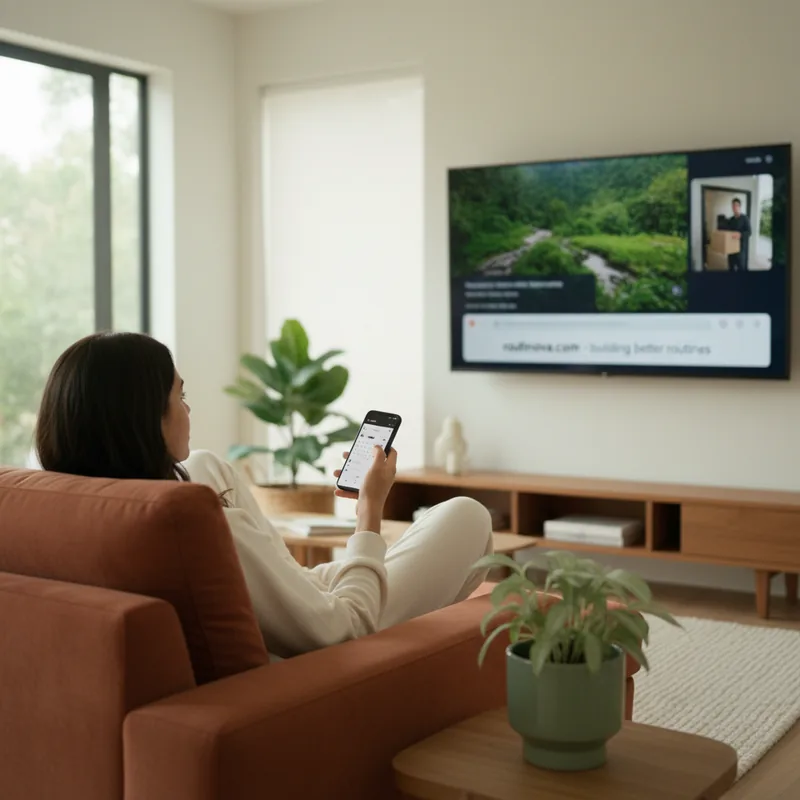
Integrating your smart home security with your entertainment system adds a significant layer of convenience. If you have an Alexa-compatible smart camera, you can often display its feed directly on your Fire TV. Imagine watching a movie and, with a simple voice command or notification, seeing who's at your door without missing a beat of your show. Brands like Nest, Arlo, Blink, Wyze, Logitech, and many others offer varying levels of integration. While setup specifics differ by brand, the ability to quickly check on a package delivery or see who's ringing the doorbell without getting up is a true modern luxury (SmartHome Digest, 2024). This is one of the most practical hacks every Amazon Fire user with a smart home setup should explore.
There you have it: a comprehensive guide to unlocking the true potential of your Amazon Fire TV. From enhancing basic navigation to transforming it into a smart home command center, these are the hacks every Amazon Fire user should master. The real power of your Fire TV isn't just in what it streams, but in how it integrates into and simplifies your daily life. So go ahead, experiment with these tips, and redefine your entertainment and home experience.